

 FlippingBook Publisher
 FlippingBook Automation
 Salespal
Is it possible to replace the PDF and keep the same link?
 Product: FlippingBook Online
Yes, that's possible! After your flipbook has been up and running for some time, you may need to update some content in your PDF. Or perhaps, you found a typo on some page and you already shared the link with your viewers. Here is where the Replace PDF comes in handy. It lets you upload an updated version of your PDF while keeping the same flipbook link, so your audience always sees the latest content without needing a new URL. This feature is available in Starter and higher plans.
Note! ⚠️You can only replace the entire PDF. If you need to add, remove, or change a page, you’ll have to upload a new full document.
How can I replace the PDF in my flipbook?
- Open the list of your flipbooks.
- Hover over the flipbook you'd like to update and choose the Replace PDF option from the three-dot button menu:
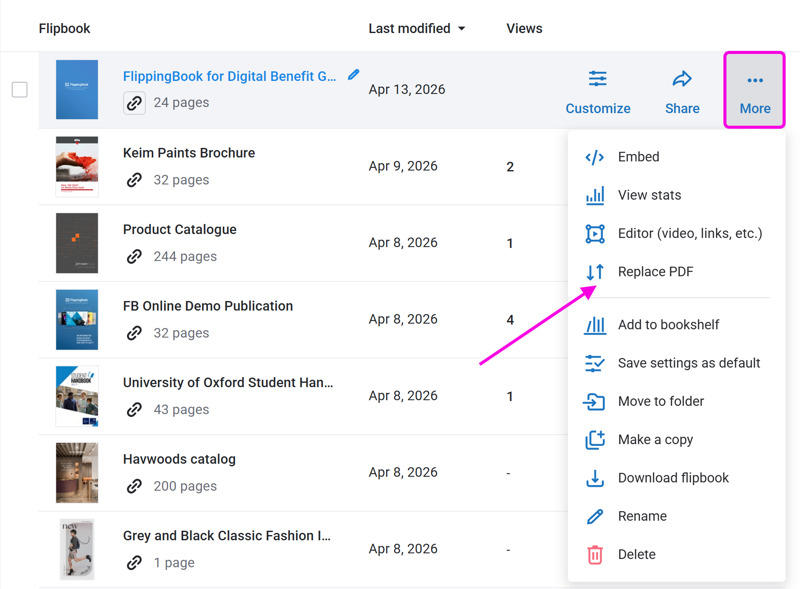
- This will open a window where you can choose the PDF file. Click the Select New PDF button:
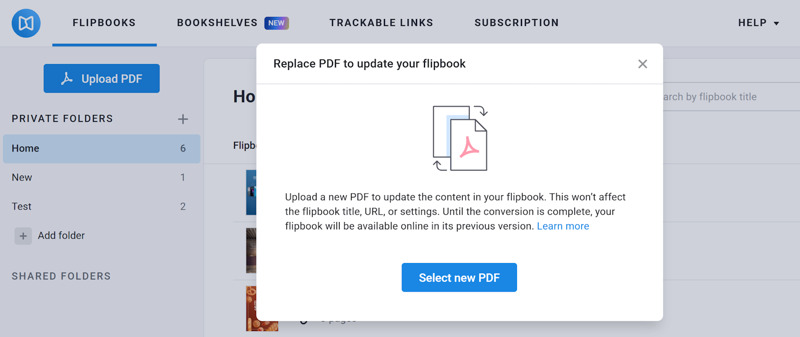
- Choose the updated version of the PDF file, then click on the Open button.
- Your flipbook will start updating and will be ready soon.
Same as when you create a new flipbook, the upload and conversion process take a moment to finish. During this process, the flipbook will remain available and the old version displayed. This way, your viewers will always have access to your publication without interruption.
Note! ⚠️Accidentally updated a book with the wrong PDF? Contact our Support Team! We can help you restore the previous version.
How does replacing the PDF affect my content?
What will happen to my Table of Contents when I replace my PDF?
What happens to the ToC depends on whether you edited it manually in your flipbook.
If you didn’t edit the ToC in your flipbook, we’ll update it automatically based on the new PDF. But if you did edit it, we’ll ask what you want to do when you click Replace PDF:
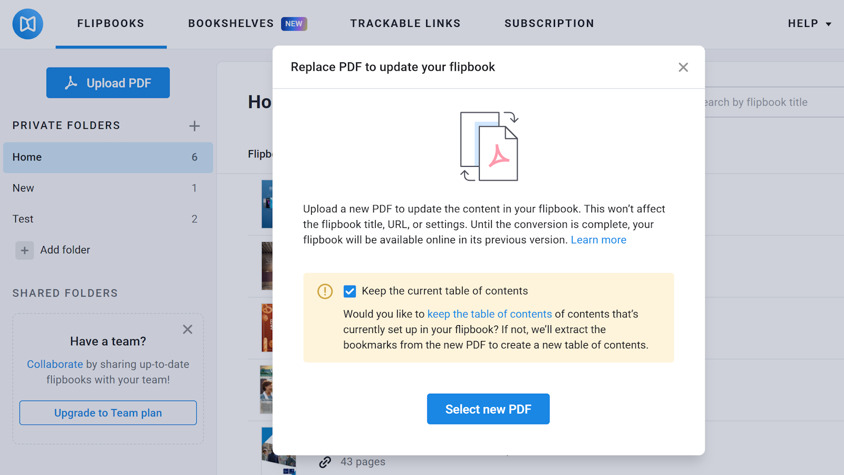
- If you clear the checkbox, we will remove your current ToC and attempt to create a new ToC from the bookmarks in your new PDF.
- But if you leave the checkbox selected, we’ll keep your current ToC and ignore any bookmarks from the new PDF.
Important! ⚠️If the new PDF has fewer pages, any headings that link to missing pages will be hidden. If this happens, do not edit the ToC in your flipbook! Saving at that point will permanently delete those headings. They will reappear if you upload the correct PDF version.
Will my links, videos, and images remain if I replace the PDF?
The elements you add within the Content Editor are bound to a page number. They are not tied to your content itself. If you added some content, when you click on Replace PDF, you will be prompted to either keep them or remove them:
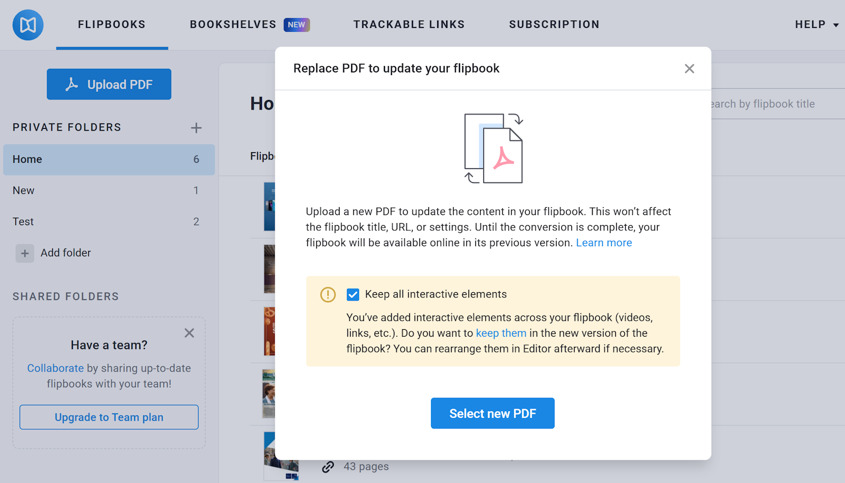
- If you made a small change to your PDF, like fixing a typo or updating a single image, then almost certainly you will want to keep any links, videos, and images that you added. But if you replace the PDF with a completely different one, then you probably want to remove them.
- If you keep changes, then any custom content that you added stays on the same page as it was. This is perfectly fine if all your pages stay in place. But if you added a page in the middle of your new PDF, then your custom content will end up on the wrong page.
As an example, here’s what happens when you update your flipbook with a PDF that has extra pages:
Tip! 💡Do you have a PDF that requires regular updates? Consider adding the links to the PDF itself instead of using our Editor.
When links are in the PDF, our converter recognizes and extracts them when you replace the PDF.
Troubleshooting issues
Error messages
Did you get an error message when updating your flipbook? It might be that the size or page limit of the updated PDF exceeds the limit of your plan. Kindly check on this article to see how this can be solved.
I replaced my PDF with a similar one, but the content looks wrong. How can I fix it?
This can happen if the updated PDF has a different layout from the original one. In other words, one PDF may use a single-page layout, while the other is formatted in spreads.
To better understand why this might happen, let’s walk through a simple example:
- Assume your original PDF uses single pages and contains 18 pages in total (cover + 16 pages + back cover)
- You update the PDF, but the document was exported as spreads instead of single pages. Because of that, the new PDF ends up with only half the number of pages (10 pages: cover + 8 spreads + back cover).
- When you use Replace PDF in FlippingBook Online, the elements you added in the Editor no longer match the correct pages (since they’re tied to page numbers).
So how can you fix it? The best solution here is to export the PDF again with the original page setup. It means that if your original PDF had single pages, your new PDF should also have single pages. If it had spreads, your new PDF should also consist of spreads. After your new PDF is ready, replace the original PDF with a new one again. All content should return to its correct place.


