

 FlippingBook Publisher
 FlippingBook Automation
 Salespal
How to change how links are extracted from your PDF?
 Product: FlippingBook Online
By default, we create links in your flipbooks by converting everything that looks like a link from your PDF. This includes:
- things that are specifically marked as links in your PDF itself
- text that clearly looks like a link, such as https://flippingbook.com/help
- text that almost certainly is a link such as flippingbook.com
This is behavior is not always desirable. These settings can result in too many links, obscuring the ones that you want your readers to use. Sometimes it can even result in links unintentionally being extracted. For example, we also extract international telephone numbers. But if you have a catalog with part numbers, then these may sometimes turn into phone links! Hence we have added some settings that allow you to change how links are extracted.
You can change the link extraction settings in the PDF conversion page of your account settings.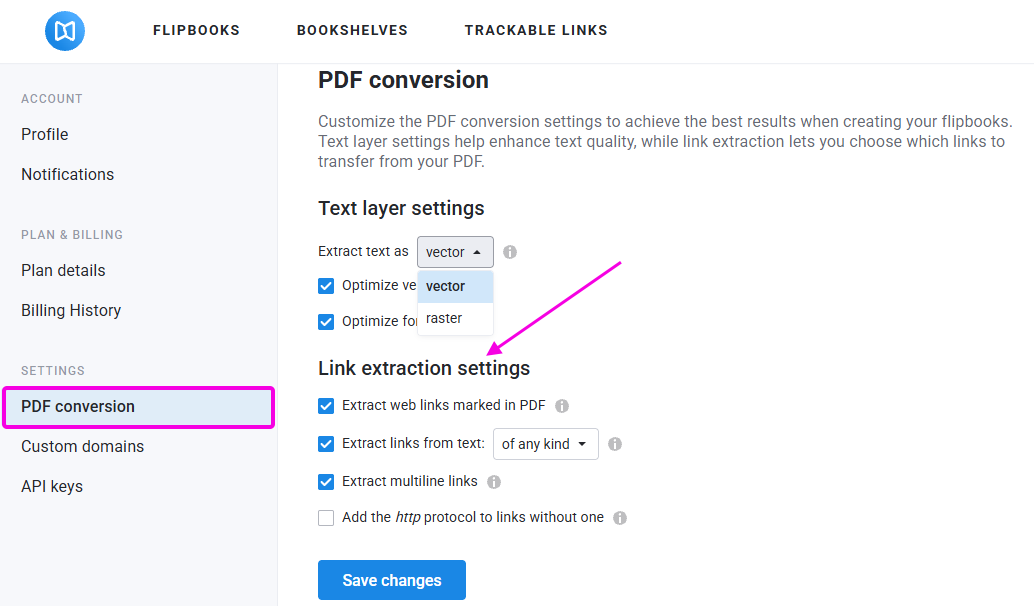
Here are the link extraction settings available for you:
- Extract web links marked in PDF
- Extract links from text, with an additional choice: of any kind, or matching link criteria
- Extract multi-line links
- Add the http protocol to links without one
If you don't want any links to be extracted at all, you can simply disable all four options and press Save changes.
Here is how these options work in detail.
Extract web links marked in PDF
If this option is enabled, then all the links that you can click on in your PDF will also become clickable links in your flipbook. If you disable this option, we do not extract such links. Note: they may still be extracted if the text looks like a link and you do not disable the second option (Extract links from text) as well.
Extract links from text
If this option is enabled, then we convert text that looks like a link to links: URLs, email addresses, and international phone numbers. There are two variants you can choose from. If you choose Of any kind, then everything that looks like a link will be made clickable. If you choose Matching link criteria then we apply more strict criteria to determine: links to websites are only extracted if they start with http/https or www. Phone numbers are only extracted if they are preceded by the tel: prefix. The table below shows this with some examples:
| Text | Of any kind | Matching link criteria |
| flippingbook.com | ✅ | ❌ |
| http://flippingbook.com | ✅ | ✅ |
| www.flippingbook.com | ✅ | ✅ |
| tel:555-555-1234 | ❌(no international number) | ❌ |
| +1 (555) 555-1234 | ✅ | ❌ |
| 0015555551234 | ✅ | ❌ |
| tel:00-1-555-5551234 | ✅ | ✅ |
| example@email.com | ✅ | ✅ |
Extract multi-line links
If this option is enabled, then we extract multi-line links from your PDF.
If this option is deactivated, the converter will recognize only the first line of the link.
Note!If the option Extract web links marked in PDF is turned off, this Extract multi-line links option will be disabled as well.
The option Extract multi-line links is switched on by default and normally, there is no need to touch this option. However, if your flipbook has a lot of links with additional text added to them that shouldn't be there, and you have no links that span multiple lines, then you can disable it.
Let’s look at the example which shows when disabling the option Extract multi-line links can be useful. Here we uploaded our PDF and see that one of the links goes with the additional text which is not related to the link at all:
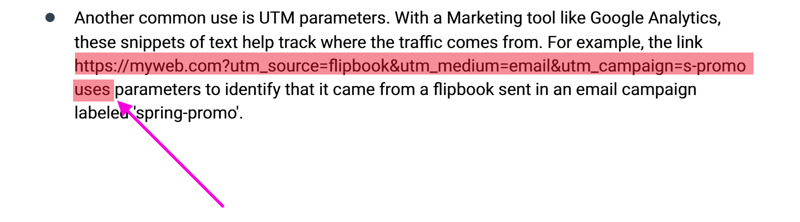
If this is the only case in your entire PDF, we advise you to correct the link manually in the Editor. But if you have dozens of such cases, then to fix this issue we should reupload the PDF with the switched off Extract multi-line links option. Here is how our example will look with the disabled option:

So the switched off option fixed the issue. As we see now the correct link has been extracted without any additional text.
Here is how you can switch off the Extract multi-line links option for your flipbook:
- Сlick on the cogwheel button near the button Upload PDF.
- Find the Link extraction settings block.
- Untick the option Extract multi-line links.
- Click on the Apply button.
- Reupload your PDF to make this option work.
In case you have any further questions about the links in your flipbook, feel free to contact our Customer Support.
Add the http protocol to links without a protocol
If we extract a link that does not contain a prefix for the protocol, then by default, we extract such links as https:// links. For example, if you have a link that says flippingbook.com then we detect it as https://flippingbook.com. Think works fine for most sites. But if your site doesn't support https, you will see a security error in the browser when you click on this link. For example, if your text contains sitewithoutssl.com then it will be extracted as https://sitewithoutssl.com/ which doesn't work!
To prevent this, you can enable the option Add the http protocol to links without one. If you do so, we add http:// instead of https://.


