

 FlippingBook Publisher
 FlippingBook Automation
 Salespal
How to add sound to flipbooks? 🆕
 Product: FlippingBook Online
Using FlippingBook Online Optimal and higher, you can add MP3 audio files to your flipbooks to make them more engaging and informative. For example, recordings of interviews, presentations, or announcements give an extra personal touch that written text may lack. Or you can use it to play a recording of the text on the page to increase the accessibility of your content.
There are two ways to embed your audio:
- Upload MP3 audio files up to 100 MB directly from your device.
- Use public MP3 audio hosted online.
Havwoods Catalog Autoplay Audio
In this article, you will learn the following:
- How to add audio to a flipbook?
- Managing your audio settings
- Useful tips for viewers
- Audio on Mobile
- What if my audio is not in MP3 format?
- Working with hosted MP3 files
How to add audio to a flipbook?
To embed audio in your flipbook, you'll need either an MP3 file saved on your computer or a direct link to an MP3 file hosted online. Once you have either of these ready, follow the steps below:
- Open the list of your flipbooks.
- Hover over the flipbook where you want to add your audio.
- Click the button with more options and choose Editor (video, links, etc.).
- Go to the page where you want to add your audio. You can use the paginator at the bottom to quickly jump to a specific page.
- Click on the button Audio on the left-hand side of the page.
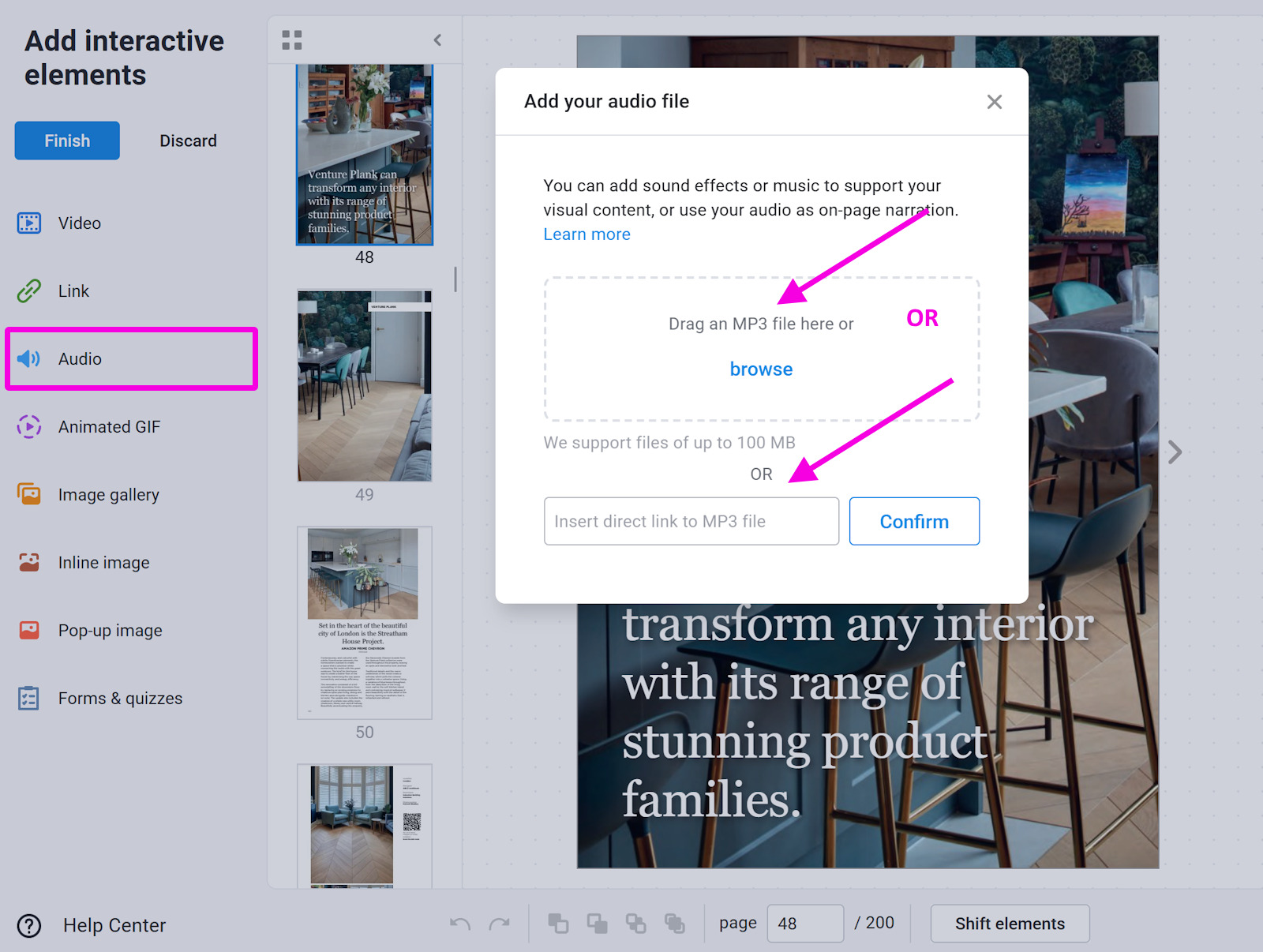
- This will open a pop-up window. You can now add an audio file from your device. To do so, drag and drop it onto the marked area, or click on browse and select it from your device.
Note! It is possible to copy and paste the URL of your own MP3 audio file stored online, but this feature is supported only for specific use cases. For details, see the section Working with hosted MP3 audio files.
- If you want to set up your audio settings, you can do it by following the steps we describe in the next section of this article.
- Press Finish to save the audio in your flipbook.
Managing your audio settings
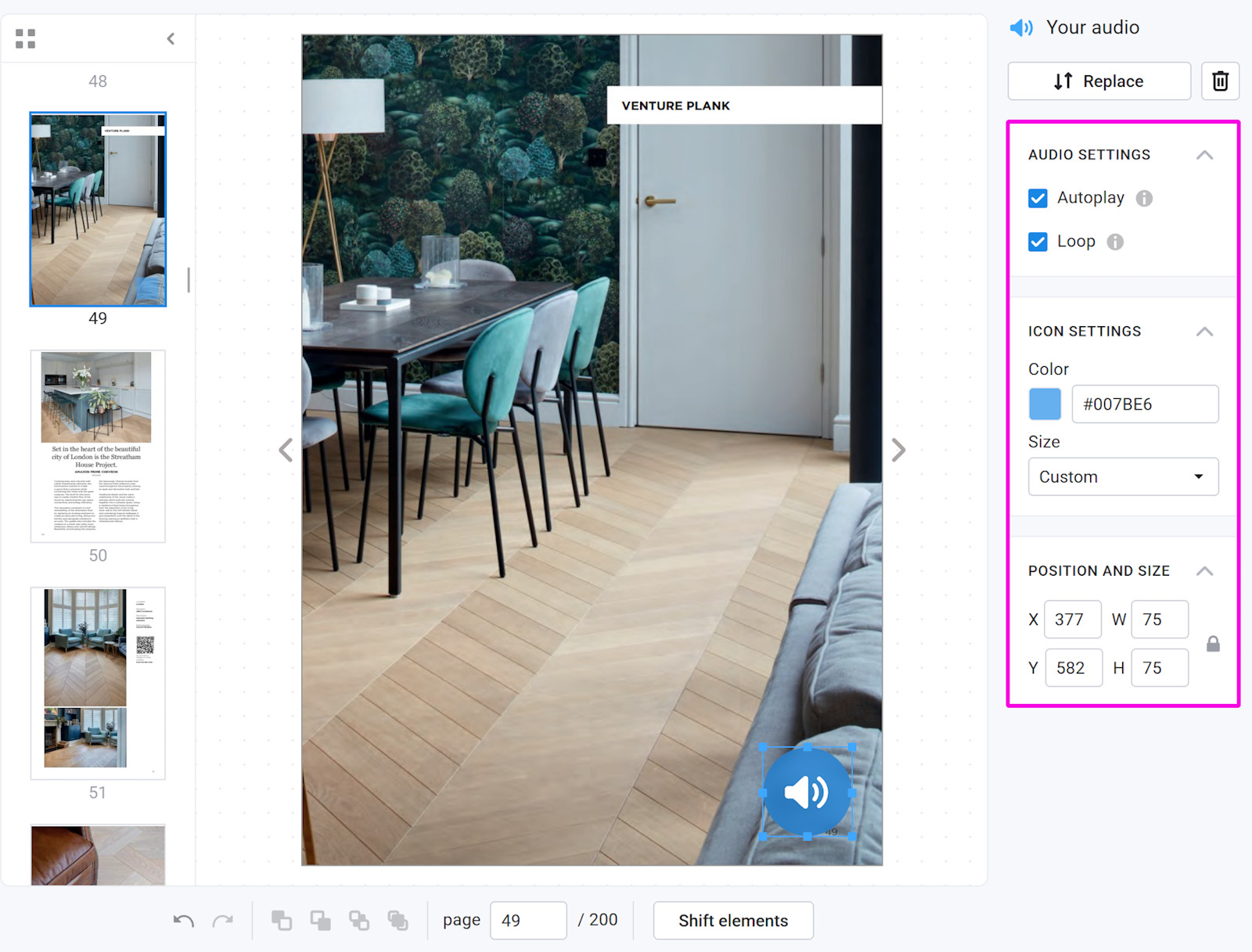
You can customize the audio settings in the panel on the right-hand side.
Audio settings
- Autoplay - the audio starts playing automatically after the reader interacts with the flipbook, e.g. by turning a page. Note that the page with audio will not autoplay if you open it via the direct link. If autoplay is enabled for multiple audio files on the same page, only the audio file positioned in the top-left will play automatically.
- Loop - the audio automatically restarts from the beginning after it finishes playing.
Both settings are turned off by default.
Icon setting
You can customize the appearance of the audio icon using the following options:
Color - change the audio icon's color and adjust its transparency.
Size - choose the size of the audio icon:
- Small
- Medium
- Large (default)
- Extra Large
Position and size
To move the audio icon, click and drag it to the desired location on the page.
When the audio icon is selected, its exact position and size are shown in the right-hand panel, where you can also edit these values manually. To resize the audio icon, simply select it and drag one of its corners with your mouse. You can also use the arrow keys to move the selected audio icon one pixel at a time in any direction.
Useful tips for viewers
You can do more than just play and pause the audio. Here are several controls to help you customise your listening experience:
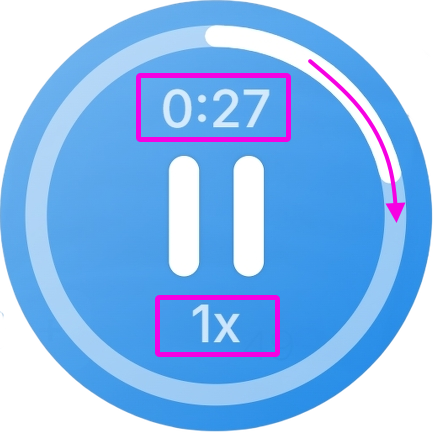
- Change playback speed: Click “1x” to choose a playback speed between 0.5x and 2x.
- Skip ahead: Click or drag the progress circle along the timeline to jump to a different point in the audio.
- Switch the timer: Click the timer to switch between “Time played” and “Time remaining.”
Audio on Mobile
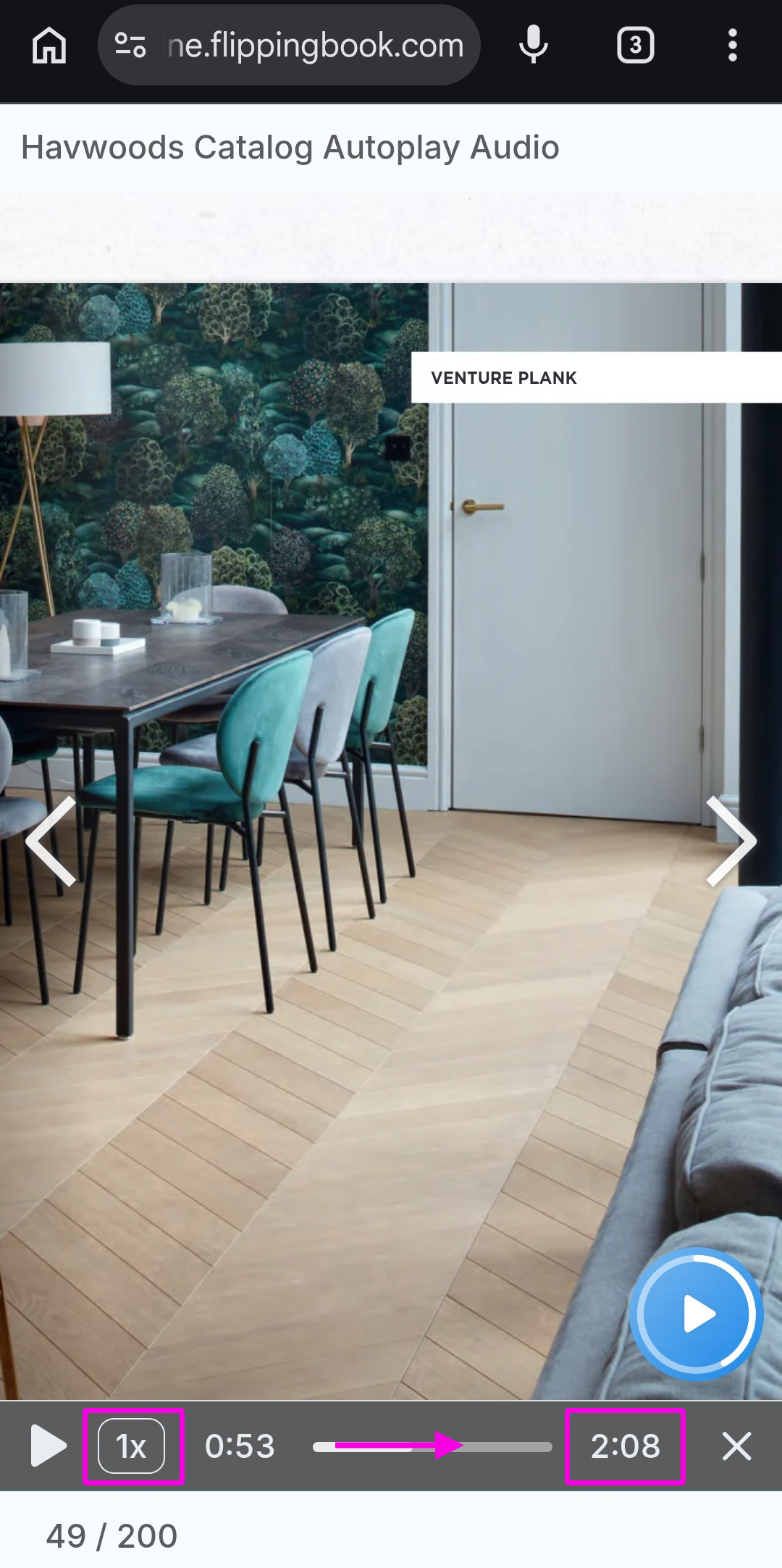
The audio player looks different on mobile devices than it does on desktop. The image on the right shows how it appears on mobile, along with the controls available to help you customise your listening experience. Here’s how they work:
- Click “1x” to choose a playback speed between 0.5x and 2x.
- Click or drag the progress bar along the timeline to jump to a different point in the audio.
- Click the timer to switch between “Time played” and “Time remaining”.
Warning! Autoplay is not supported on mobile devices, so you’ll need to click the audio icon to start playing your audio file.
What if my audio is not in MP3 format?
As we mentioned before, your audio file must be in MP3 format before you can upload it. If your audio is in a different format, you can use an online file conversion service such as FreeConvert to convert it to MP3.
To convert an audio file to MP3 using FreeConvert:
- Click Choose Files and select the audio file you want to convert.
- Click Convert to start the conversion.
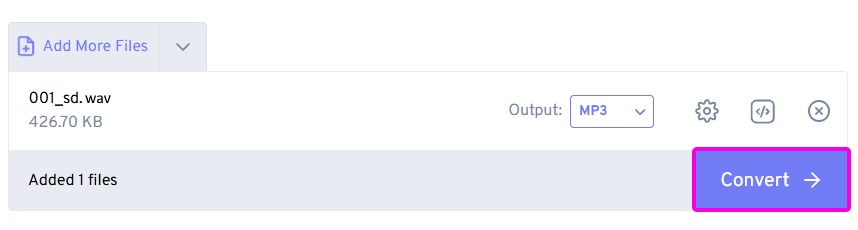
- Once the conversion status changes to Done, click Download to save the MP3 file to your device.
Working with hosted MP3 audio
Instead of uploading MP3 files, you can enter a direct URL to MP3 files hosted online. When visitors click the Audio button in your flipbook, we play the file directly from that URL.
Because this approach has several limitations, we only recommend it if you already have a large collection of MP3 files and plan to add dozens of them to your publications. For just one or a few files, it's easier to open the URL in a browser manually, download the MP3 to your device, and upload it directly to FlippingBook.
If you want to use direct URLs to hosted MP3 files anyway, then keep the following in mind:
- Use a direct link to an MP3 file. The URL should look like this:
https://yourserver.com/audio/presentation.mp3. Only the MP3 format is supported. - Google Drive and Dropbox links aren't supported.
- Make sure the online files stay available. If you delete, move, or rename the file, the Audio element in your flipbook will stop working for visitors.
- Your server must allow access from FlippingBook. This requires CORS (Cross-Origin Resource Sharing) to be enabled, which many web servers don't allow by default. If it isn't enabled, you'll see this error: "We couldn't retrieve the audio from your server due to its internal settings."
To allow CORS access, contact your server administrators and ask them to configure the following CORS headers on your server:
Access-Control-Allow-Origin: *
Access-Control-Allow-Methods: HEAD, GET, POST
Access-Control-Allow-Headers: Content-Type, Content-Length
These headers ensure that your audio can be accessed from any domain, including our platform. Alternatively, you can set Access-Control-Allow-Origin to flippingbook.com to ensure that the audio can only be embedded in flipbooks and not on other websites.


