

 FlippingBook Publisher
 FlippingBook Automation
 Salespal
Shared folders in-depth
 Product: FlippingBook Online
Note! This article contains information on one of the advanced FlippingBook Online features. If you feel like it might be difficult to understand from just plain text or you’d like to see how it works before upgrading, feel free to book a meeting with one of our specialists.
When you work with multiple users in a single shared workspace, a few new questions can come up that simply don’t come into play with single-user accounts. This article describes how some other features work when working with multiple users. Read on if you want to learn more about working in FlippingBook Online in a multi-user environment when it comes to:
Default settings
Every team member has their own Default settings. So if you save your settings as default, they will only be applied to future publications that you create (even if you are the account owner).
If you all want to use the same settings, then you could create a Master-flipbook in a shared folder. All your team members can then open that flipbook and save the settings for that publication as their default settings. This is an easy way to create a coherent look for all your flipbooks.
Google Analytics
Trackable links
All team members can create trackable links for all flipbooks that they have access to: in private or shared folders. Trackable links work at the user-level. This means that notifications that the link was opened will be sent to the team member who created the link. And link activity can be monitored by the team member who created it, and only by them.
Moving a flipbook from a private folder to a shared folder will not affect it in any way. But if you create a trackable link for a shared flipbook, and a colleague moves that flipbook to one of their private folders, then you have to be careful! Let’s say that John created a trackable link for a shared flipbook, but then, Francis moved that flipbook to her private folder. What happens is that:
- The trackable link will keep working for readers, but...
- John will not be notified by email if someone opened the link.
- John will not be able to see link activity for the trackable link. Instead, he will see a warning message explaining the situation.
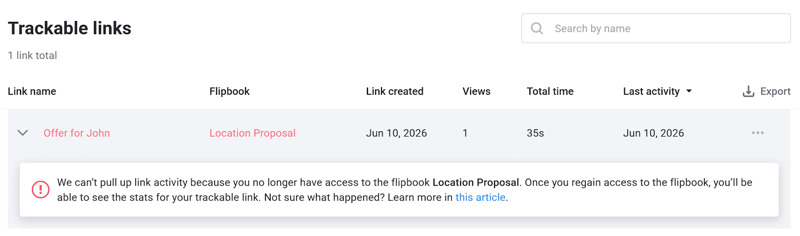
In such cases, the individual link is not transferred to Francis. It remains John’s property, but it is simply temporarily suspended. When Francis moves the flipbook back to a shared folder, John will again be able to see the activity and will again receive emails if someone opens the link.
Deleting users
When the account owner deletes a team member, they will get the choice of what to do with the private flipbooks of that user. You can either move them to your own account or delete them completely. If you decide to move them to your own account, then we will create a new private folder with the email address of the user you just deleted.
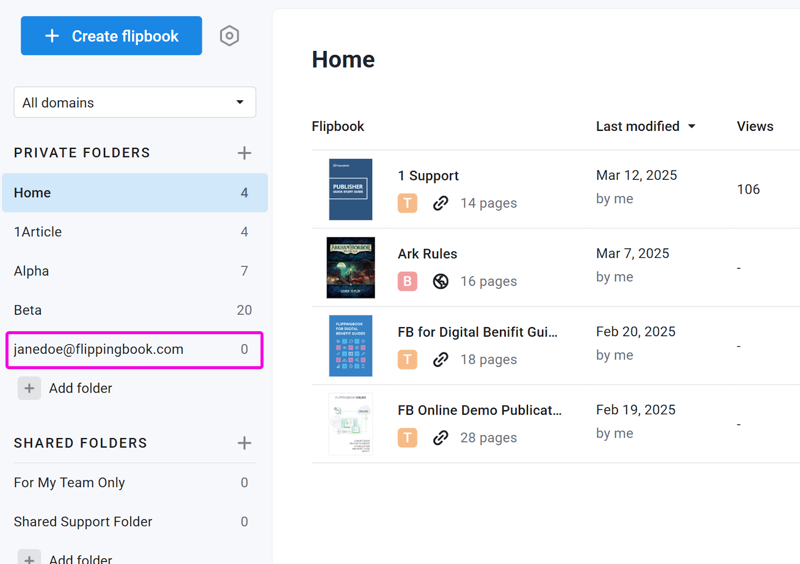
This folder will contain all their flipbooks. You can now review them and move them to another folder or delete any flipbooks that are not used anymore.
After deleting a user, that user's name will still be visible in the 'Last Modified' column with a suffix '(deleted user)' until another user modifies the flipbook.
Multiple custom domains
In FlippingBook Online, it is possible to set up multiple custom domains to replace the standard online.flippingbook.com part of the URLs. For example, you could set up:
- catalogs.mainbrand.com for your catalogs;
- newsletters.mainbrand.com for your newsletters;
- newsletters.secondarybrand.com for newsletters for a secondary trade name that you use.
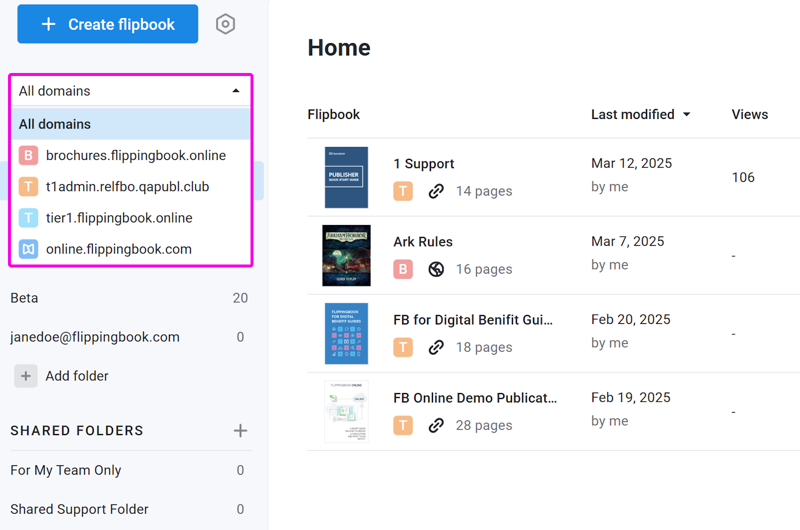
Your team members will only see flipbooks that are accessible on the custom domains that you have granted them access to. But if you use multiple custom domains and the folders don't exactly coincide with the custom domains, it can be hard to keep track of things. Therefore, users who have access to more than 1 custom domain will see a selector in the top-right corner. You can use this selector to filter only publications that are published on a specific custom domain
Learn more
- The basics of folders in general
- Working specifically with Shared folders


