

 FlippingBook Publisher
 FlippingBook Automation
 Salespal
Zapier integration
 Product: FlippingBook Online
Note! This article contains information on one of the complex FlippingBook Online features. If you feel like you need some help, feel free to book a meeting with one of our specialists.
In this article, we describe how you can integrate FlippingBook with other web-based apps such as HubSpot, MailChimp, Slack, Gmail and many more using Zapier.
In this article
What you can automate with Zapier
Zapier is an online automation tool that connects all kinds of different apps. You can use it to connect Gmail to Slack, Excel 365 sheets to Mailchimp, and thousands of others, including FlippingBook Online!
Popular integrations include:
- HubSpot
- Salesforce
- Mailchimp
- Gmail
- Outlook
- Slack
- Google Sheets
- Dropbox
- Microsoft Excel
- Freshsales
You can make Zaps that work like scripts: If something happens in one app (for example, you receive an email in your Gmail account from your manager), then with Zapier, you can make something else happen in another app (for example, get a notification on Slack saying “New email from the boss - check ASAP!”).
In other words, Zapier lets you trigger actions automatically when something happens in FlippingBook Online.
Watch this 3-minute video for a quick overview:
Lead capture form
When someone submits the lead capture form in your flipbook, Zapier can automatically:
- Add the lead to your CRM, such as Salesforce, HubSpot, or Freshsales.
- Send a welcome email using Gmail, Outlook, Mailchimp, or another email tool.
- Notify your team in Slack.
- Save the lead to Google Sheets.
New flipbooks
When you create a new flipbook in FlippingBook Online, Zapier can automatically:
- Send notifications by email or Slack.
- Update your CRM.
- Share the publication on your Facebook page.
Trackable links
Zapier can automatically create and react to trackable links.
For example, you can use a teaser flipbook to collect leads before sending readers the full version:
- A reader fills out your Lead Capture form.
- Zapier creates a trackable link to the full flipbook.
- The reader receives the link by email.
- When they open it, their status is updated in your CRM.
Create publications automatically (Enterprise only)
Enterprise customers can automatically create flipbooks when a PDF is uploaded to a specific folder, for example in Dropbox.
Once the publication is created, Zapier can email the link, send a Slack notification, or trigger another automated workflow.
What you'll need
To create Zapier integrations, you'll need:
- A FlippingBook Online account with an Advanced, Team, or Enterprise plan.
- A Zapier account on any plan.
- A FlippingBook API key.
- Basic familiarity with Zapier. You don't need to be a developer, but it helps to be comfortable setting up simple automations.
Once you've connected FlippingBook Online to Zapier, you can reuse the same connection in multiple Zaps. See our article on how to set up a connection between FlippingBook and Zapier.
Example: send a welcome email for every new lead
The following example shows how to send an automatic Gmail welcome email whenever someone fills out the Lead Capture form in one of your publications.
Step 1. Prepare your flipbook
Make sure that you have a flipbook with a Lead Capture form enabled.
We recommend submitting the form yourself a few times so you'll have sample data available when testing the Zap.
Step 2. Create a new Zap
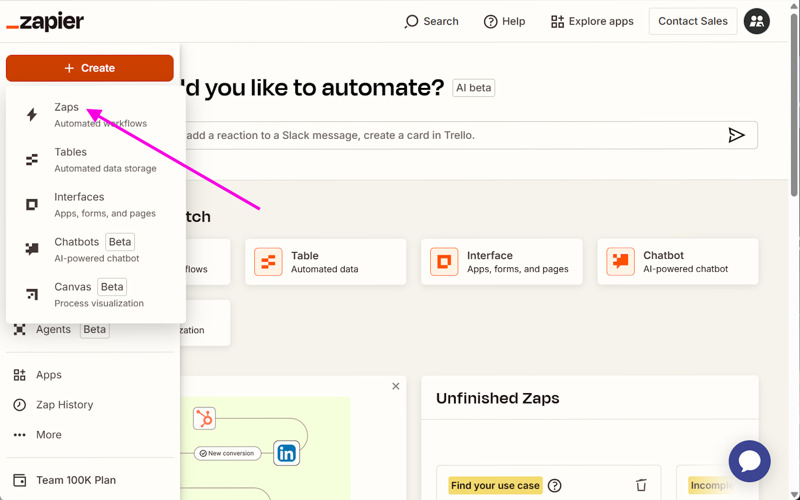
Open Zapier, click + Create, and select Zaps.
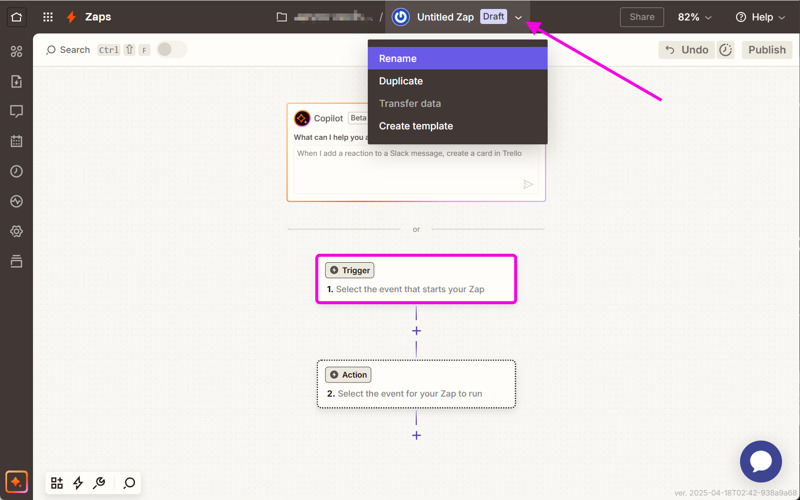
Give your Zap a name, for example, Send leads a welcome email. Then click Trigger.
Step 3. Choose FlippingBook as the trigger
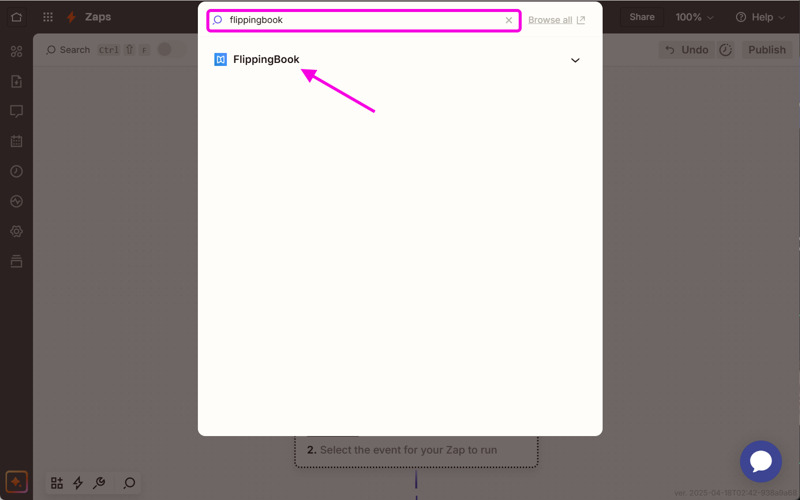
Search for FlippingBook and select the latest version.
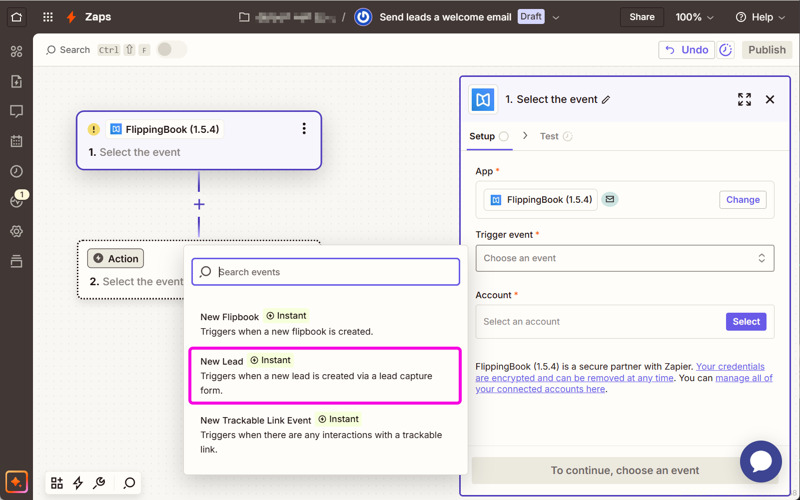
Choose the event New Lead.
Step 4. Connect your FlippingBook account
Select your FlippingBook account. If this is your first Zap, you'll need to enter your API key.
You can create API keys in the profile section of your account. For more details, see How to get and manage API keys.
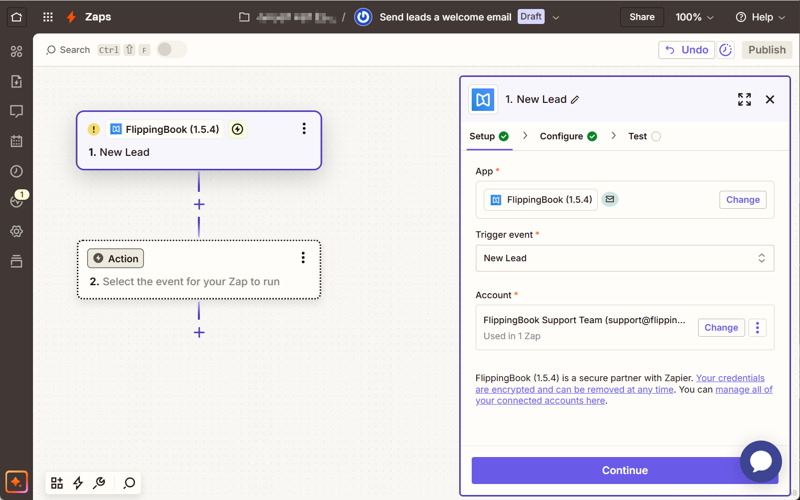
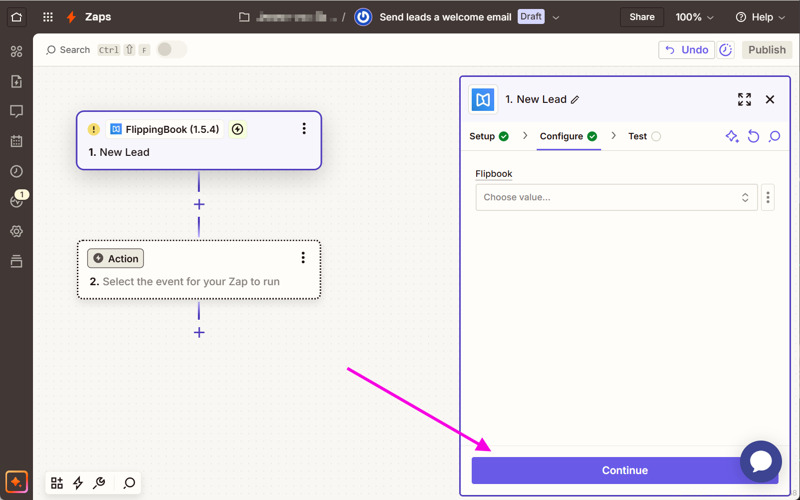
You can restrict the trigger to a Lead Capture form from a specific flipbook. If you want to collect leads from all flipbooks, leave this field blank and click Continue.
Step 5. Test the trigger
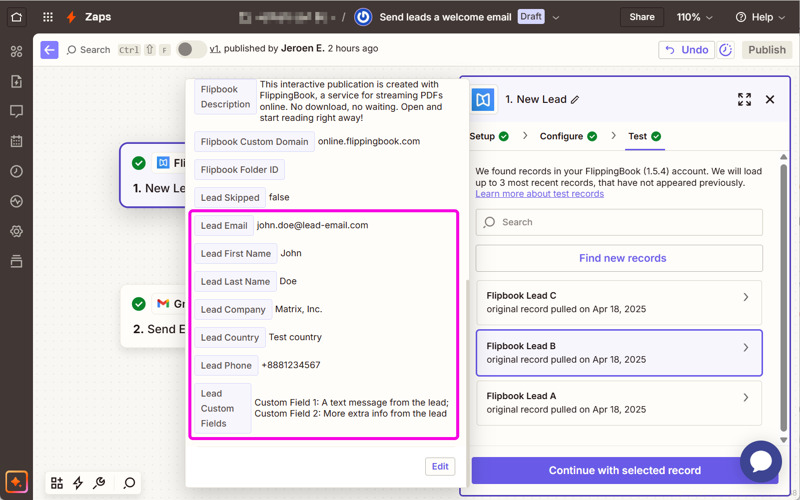
Click Test trigger. Zapier will fetch recent Lead Capture submissions.
If there are no real leads yet, Zapier may show sample records instead. Select a record and click Continue with selected record.
Step 6. Choose Gmail as the action
For this example, choose Gmail as the app for the action.
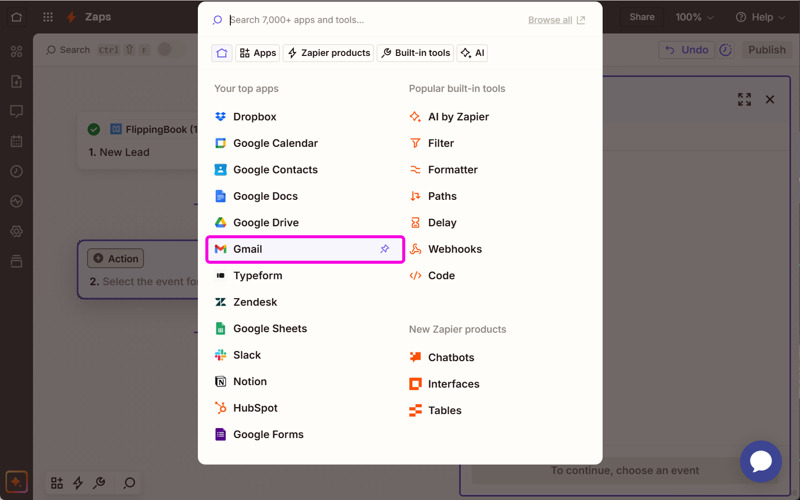
For the event, choose Send Email.
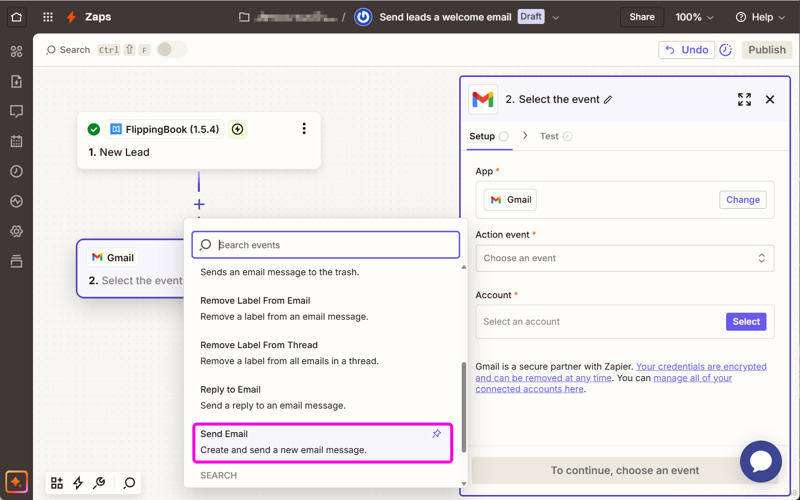
Select the Gmail account that will send the email. If needed, log in and grant Zapier permission to use your Gmail account.
Step 7. Configure the email
Map the Lead Capture fields into your email.
For the To field, select Lead email from the FlippingBook trigger data.
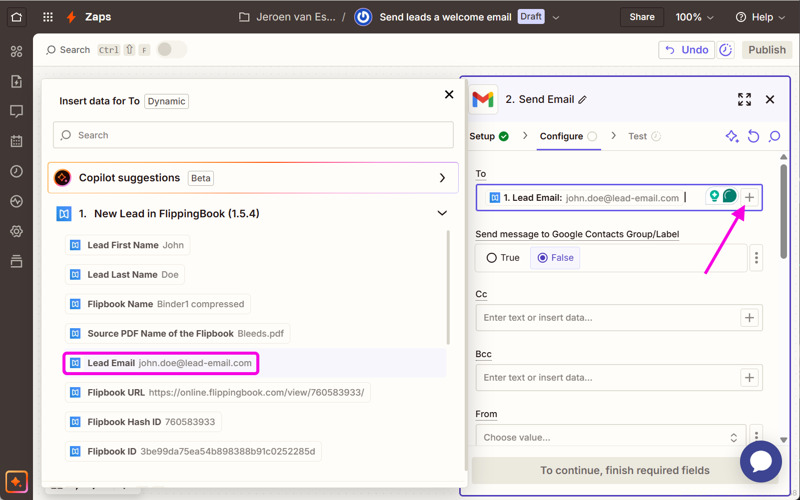
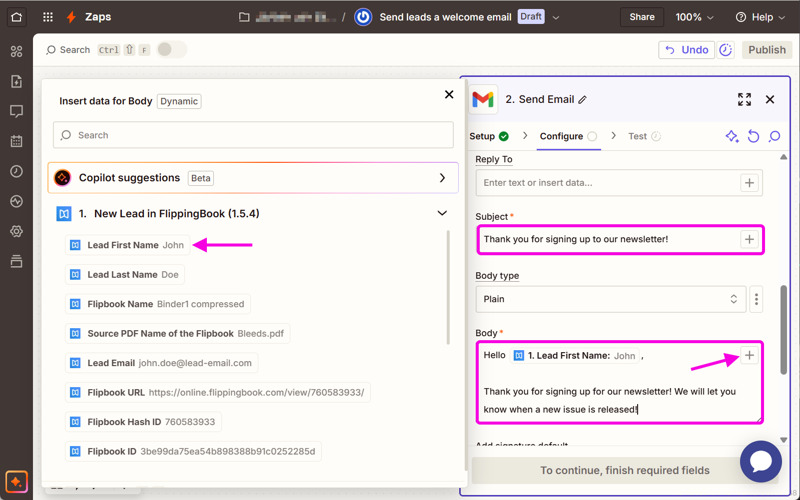
Fill in the remaining email fields. For example:
- Subject: Thank you for signing up for our newsletter!
- Body: Add your message and use Lead First Name to personalize the greeting.
Step 8. Test and publish
You can test the Zap before publishing it.
Note: Testing sends a real email. Make sure you're using your own email address if you don't want to contact a real lead.
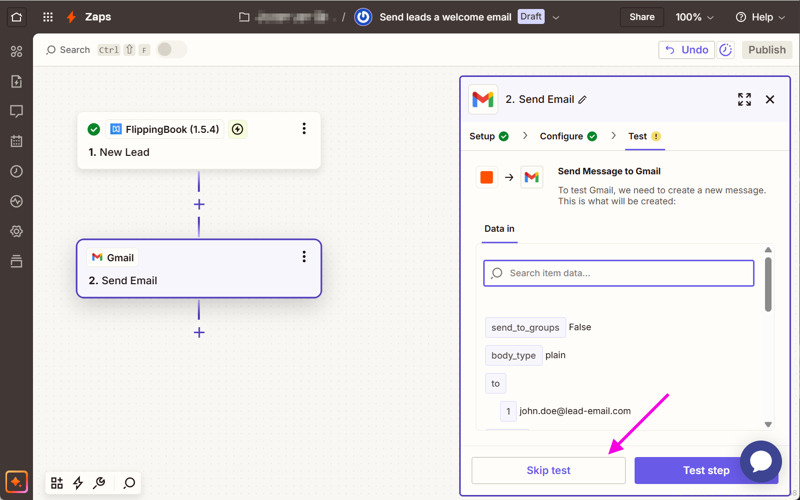
When everything looks correct, click Publish.
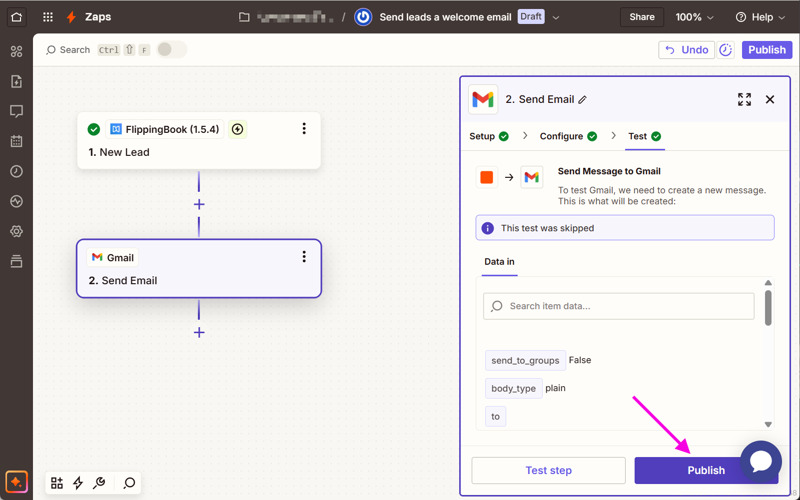
Your Zap is now active. Every new Lead Capture submission will automatically trigger your workflow.
Need help?
Our team is happy to help you connect FlippingBook Online with Zapier and answer questions about our integration.
If you need help building or troubleshooting a Zap, we recommend visiting Zapier's Help Center, as we're FlippingBook specialists rather than Zapier experts.
You can also book a meeting with one of our specialists.


