

 FlippingBook Publisher
 FlippingBook Automation
 Salespal
Bookshelf overview
 Product: FlippingBook Online
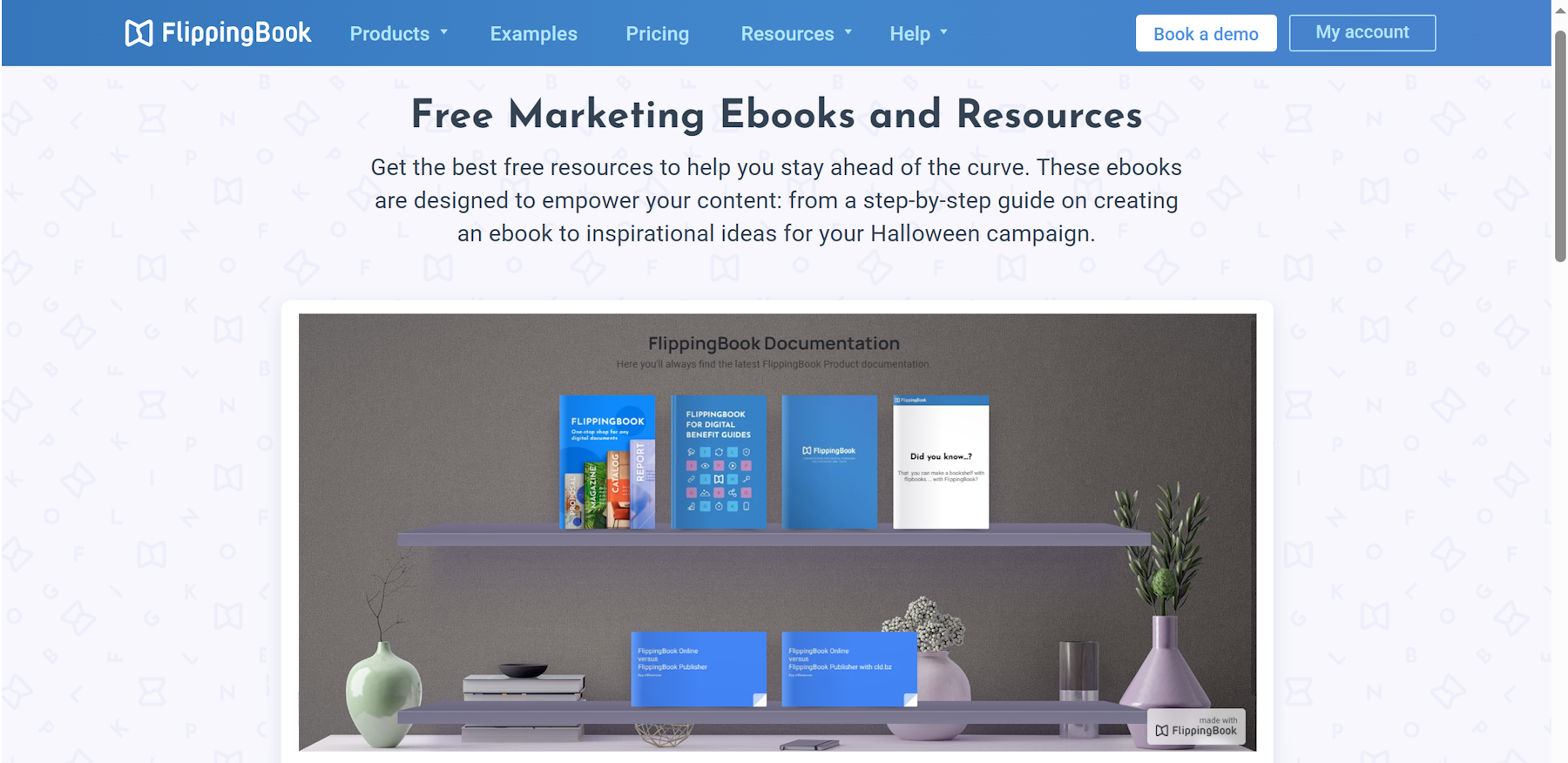
Sometimes you want to share a specific flipbook, but other times you want to share several books at once. In that case, why not use a bookshelf? Bookshelves are a great way to present related books. For example:
- Books on a certain topic or product—things like brochures, manuals, or maintenance guides
- Magazines or newsletters from a specific year
- A quick overview of all your catalogs so clients can easily pick the one they need
- Documents put together for a specific client
This article gives you a quick overview the results you can achieve. For the detailed how-to instructions, we have added links to other articles.
The first step is, of course, creating a bookshelf. You can add up to one hundred flipbooks from your account to a single shelf. Read our article on how to create your first shelf.
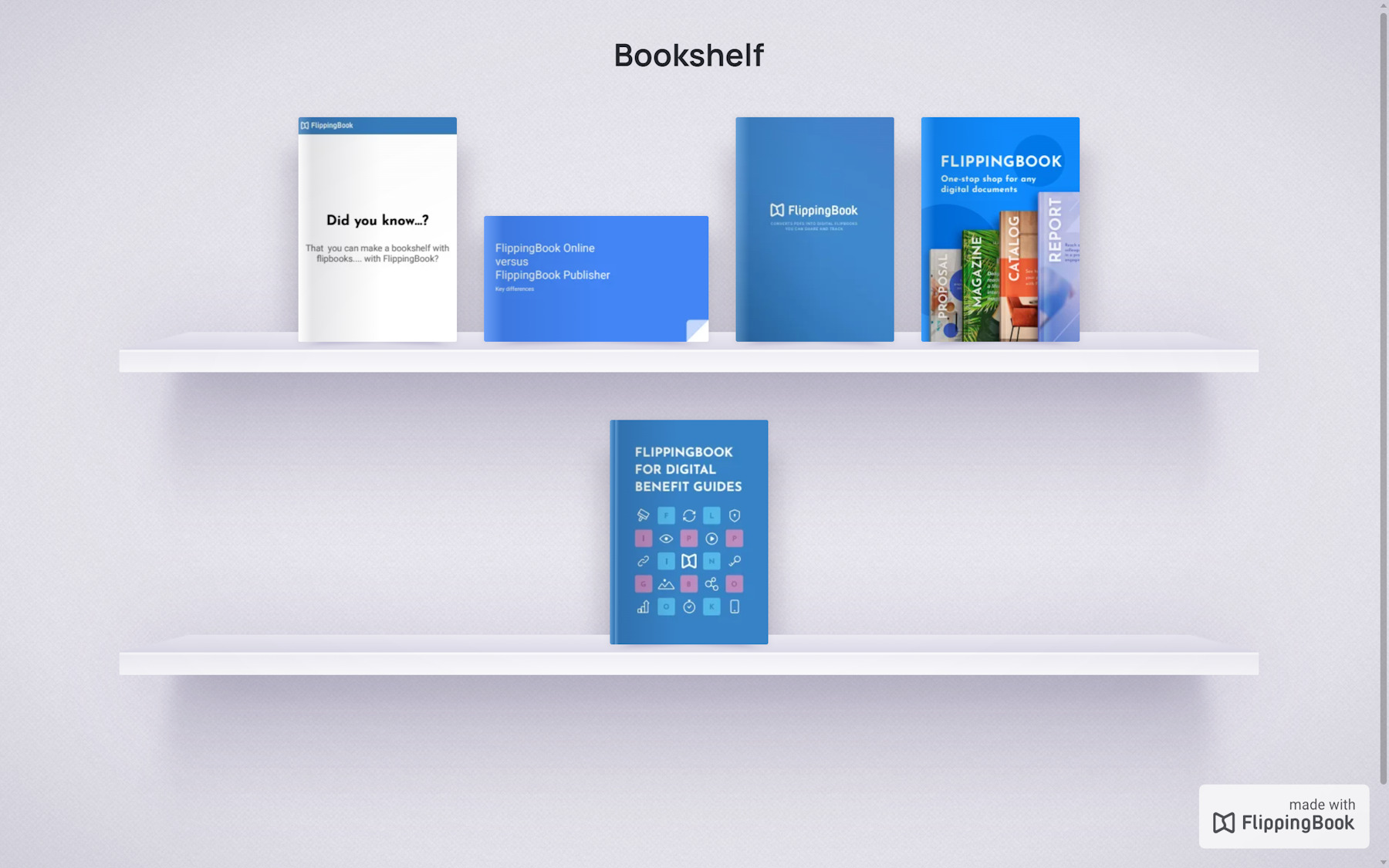
Your first shelf might look something like the one above. So, what’s next?
Title and description
You can change your bookshelf’s title and description to match its content, or turn them off completely so no text appears above your books.
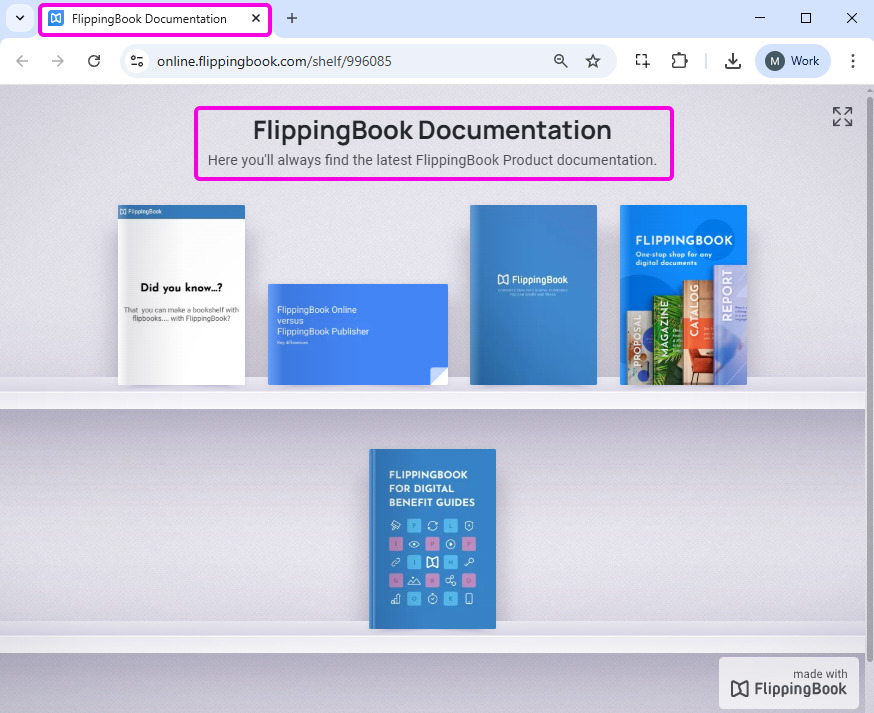
We advise you to give your bookshelf a clear name and a suitable description, even if you disable them on the bookshelf itself. Viewers will see the title in the browser tab and see the description when you share the link on social media or messaging apps.
Learn how to change them in our Customizing your bookshelf article.
Reorder flipbooks in your bookshelf
You can arrange your flipbooks in a logical reading order, or highlight important or new material by putting them first. Or just make your shelves nicer to look at.
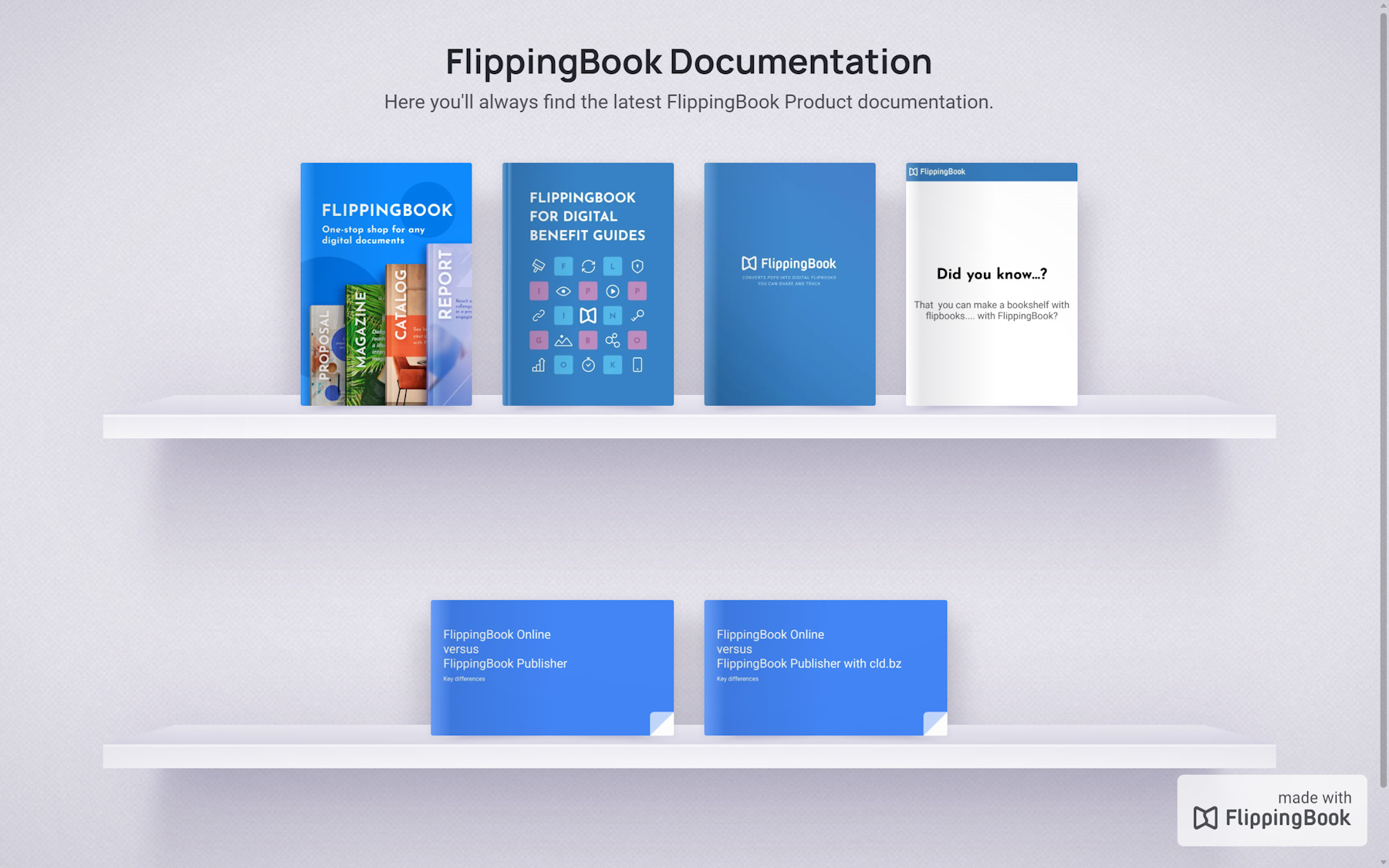
Learn how to manage the order of the books on your shelf.
Customize and brand
You can give your bookshelf a unique look and feel that matches your brand book or styling guide. For example, you can change the logo, adjust the text and background colors, and update the background image.
See our Customizing Your Bookshelf article to find out how and what else you can customize.
Change the size of the thumbnails
Do you have many books to display on a single shelf, or just a few? Depending on that, you may want to adjust the size of your cover thumbnails. This makes it easier to click on individual covers or to view all available books at once. Here’s how.
Customize the link
Don’t like the standard URLs? If you’re on the Advanced plan or higher, you can set up a custom domain and use your own branded link. For example, docs.yourcompany.com instead of online.flippingbook.com. After you have done that, you can also change the slug of the URL from /shelf/123456 to a more descriptive and memorable name! So if you have a bookshelf with product documentation, your URL https://online.flippingbook.com/shelf/123456 could become https://docs.yourcompany.com/product-documentation.
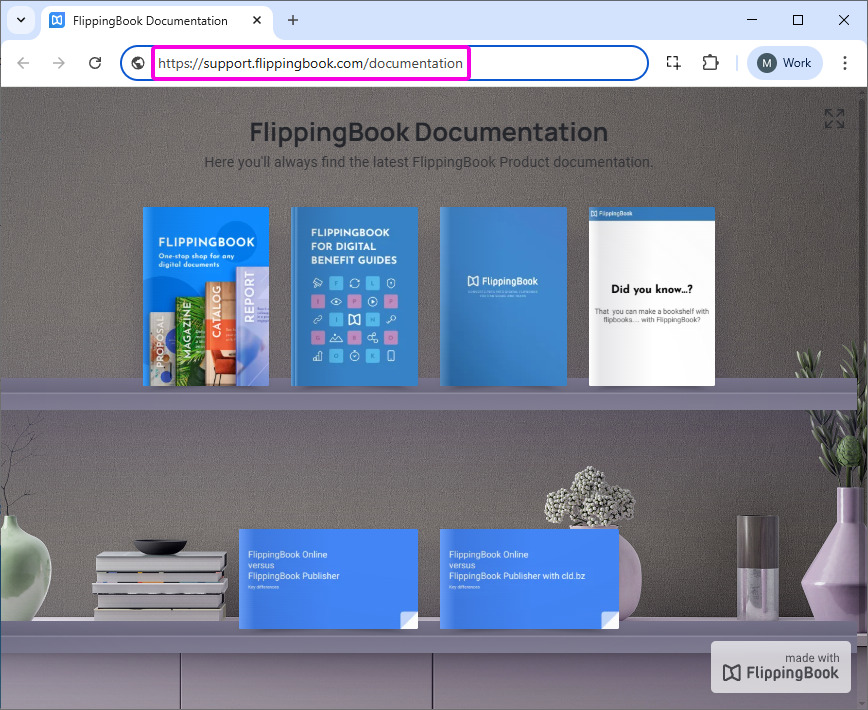
You can find out more about how to change the slug of your bookshelf URL in our article Sharing and embedding your bookshelf.
Embed it into your website
If you want to present a collection of flipbooks on your website, then bookshelves make it easier than ever. Just add a snippet of embed code to your page, and your bookshelf becomes a seamless part of it. What’s more, if you add or remove books, or make any other changes to the shelf itself immediately show up in the embedded version too. Learn how in our Sharing and embedding your bookshelf article.
Related articles
- To learn how to create a bookshelf, add flipbooks to it, or reorder them, see our Create a bookshelf article.
- Want your bookshelf to reflect your brand and personal style? Check out our Customizing your bookshelf article to find out how.
- If you’d like to share your bookshelf or embed it on your website, visit our Sharing and embedding your bookshelf guide for step-by-step instructions.


