

 FlippingBook Publisher
 FlippingBook Automation
 Salespal
How to use Google Tag Manager in FlippingBook?
 Product: FlippingBook Online
If you use FlippingBook Online Advanced or higher, it is possible to insert tags to your flipbooks using Google Tag Manager. You can insert tags that, for example,
- Enrich your publications with things like Chat widgets so you can communicate with visitors of your flipbooks, such as Intercom or LiveChat, without them leaving the publication.
- Insert various widgets like a player for background music, or a feedback/NPS survey,
- Add different Google Analytics trackers for different flipbooks, or different analytics platforms like HotJar or Microsoft Clarity.
- And more...
How to set it up?
To set up GTM for your account, just email us the ID of your container. The ID has the format GTM-XXXXXX and appears in multiple places, including the admin page, as shown in the screenshot below.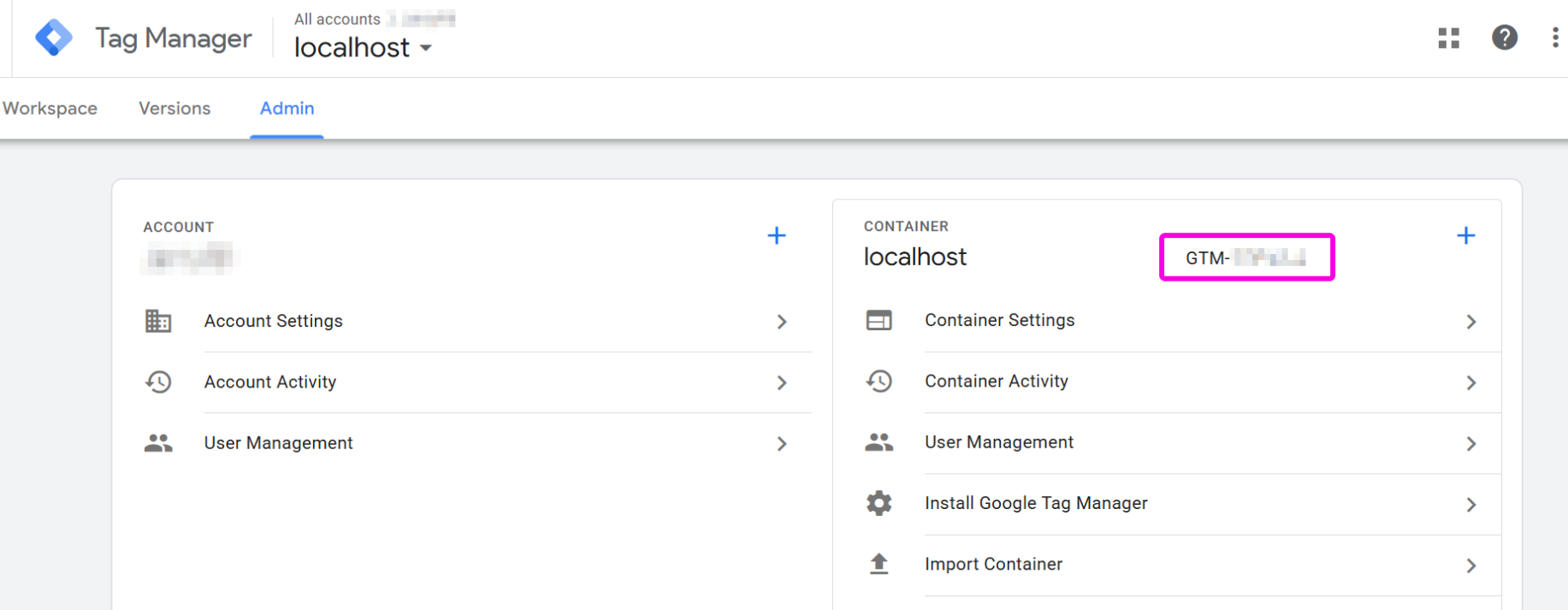
Note that if you use an existing container, any triggers in tags that are set to work on “All pages” will immediately be applied to all your publications.
What you should know before you start using GTM
Tag applicability
- Our integration with Google Tag Manager only works with flipbooks on a custom domain. We will be glad to help you set up a custom domain. Because GTM tags will only work on custom domains, you will need FlippingBook Online Advanced or higher.
- Tags don't trigger when you preview the publication in your online account (for example, in the Customize menu) , nor will they work if you download a flipbook into the mobile app so you can show it offline.
- If your account is set up to publish on both your custom domain and our domain (online.flippingbook.com), then your Google tags are not applied to publications on the online.flippingbook.com domain.
- Your Google tags are inserted in all flipbooks on your custom domain(s). If you want to customize this and make certain tags apply only to certain flipbooks, you must configure this yourself in GTM (e.g., by limiting the trigger to specific URLs or DOM elements, but remember that a flipbook may have different URLs if you use trackable links or bookshelves!)
- If you don’t limit the trigger conditions, the tags will fire for all eligible books in your account. This includes books created by team members if you have a team! If you have multiple custom domains, then your tags will trigger for all domains.
Analytics
- Some clients prefer to set up Google Analytics using Google Tag Manager. Also, if you restrict tags to trigger on specified pages, you can even use different Google Analytics tracking IDs for different flipbooks, which is not possible if you use our account-level Google Analytics solution.
⚠️Warning: if you have already added Google Analytics to your FlippingBook account, make sure that it is not added a second time through your Google Tag Manager. This may result in unexpected results in your analytics! - We have developed a JSON file that you can import into Google Tag Manager with FlippingBook-specific triggers and variables. Feel free to download it and import it into an existing or new container.
General usage and disclaimer
- We only provide the mechanism to insert tags into your flipbooks. But you are responsible for managing and verifying the correctness of all tags that you add to the container. We cannot guarantee that the tags you insert will result in the expected behavior, nor can we help you troubleshoot specific tags if this is not the case.
- While we cannot make guarantees, we have experience with several common tags, so feel free to ask if you want to use a specific tag or achieve a specific goal. We will do what we can to provide you with recommendations to set up tags correctly and inform you about limitations.
- Remember that some tags may use cookies that you may need to declare in your cookie policy. (Though in general, if you already use said tag on other pages of your site, they most likely are already there.)


