The more tools you can connect to FlippingBook, the more creative freedom you gain. That’s why we’re excited to introduce our new integration with Adobe Express.
Adobe Express is a beginner-friendly design app that helps you quickly create social posts, flyers, posters, short videos, and simple web pages. With ready-made templates, drag-and-drop editing, and built-in fonts, images, and effects, you don’t need professional design skills to create something that looks polished.
Now you can design your PDF in Adobe Express, publish it to FlippingBook, and instantly enhance it with interactive elements. So, how does the integration really work? Watch our video right away or read on to learn all the details.
How to Publish a Design from Adobe Express to FlippingBook
1. Sign in to your Adobe Express account or start with a free plan if you don’t have an account yet.
2. Create your design in Adobe Express—choose a template or document type that fits your needs (such as a report, brochure, magazine, etc.), or upload an existing file.
3. Customize your design. Edit text, colors, and backgrounds to match your style. Add your own images, icons, or graphics, and organize elements with layers.
4. And once your design is ready, you can share it with your audience via FlippingBook. First, choose Add-ons in the left panel.
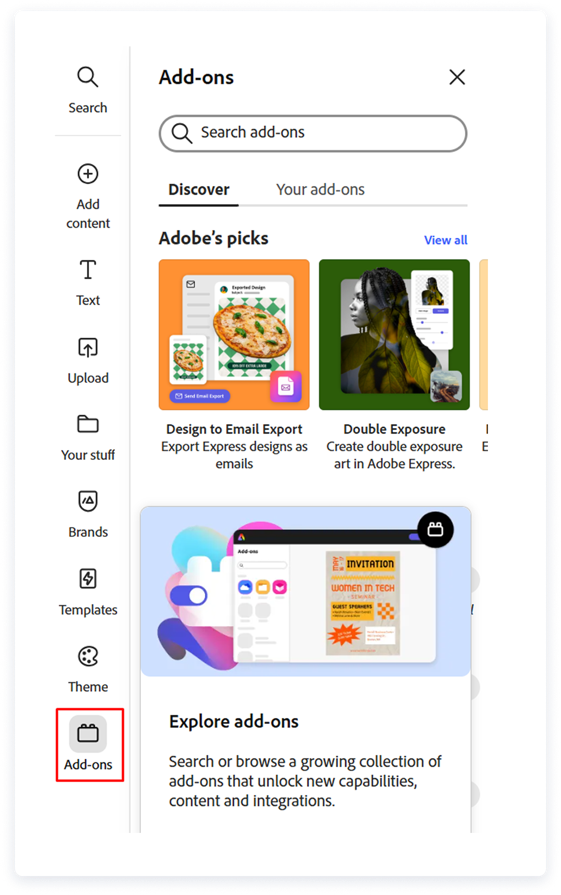
5. In the Search panel, search for FlippingBook among the available add-ons.
6. Once you find FlippingBook among the suggested add-ons, click Add.
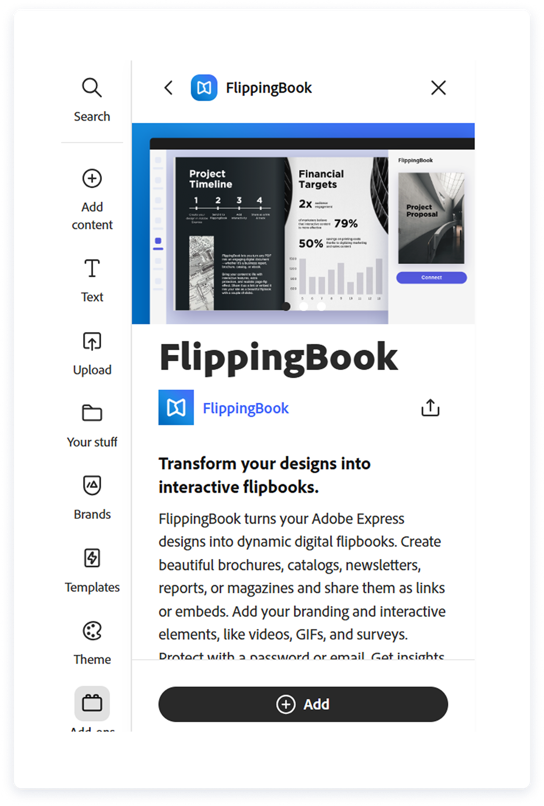
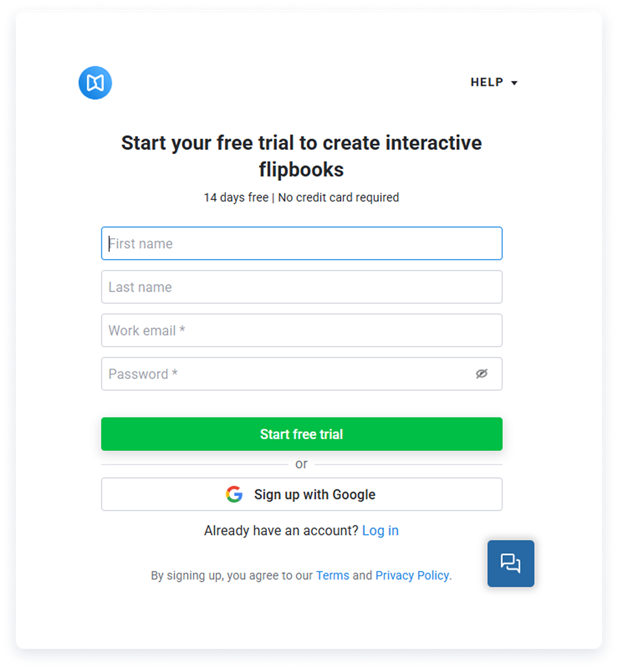
7. Then, Connect FlippingBook and your Adobe Express account. You’ll see a pop-up where you can either log into your existing FlippingBook account or sign up for a free 14-day trial. Once you’ve logged in or signed up for FlippingBook, the pop-up window closes.
8. Export your Adobe Express design to create a flipbook.
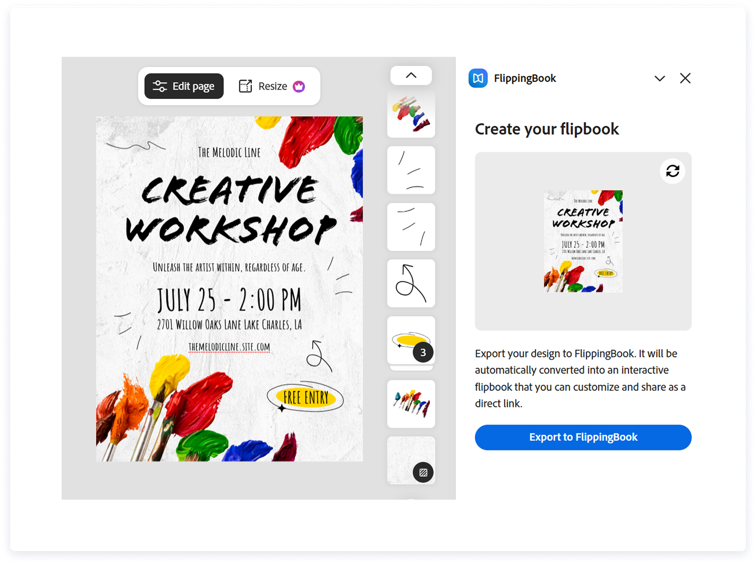
💡 You can also find FlippingBook in the Adobe Express Add-ons directory.
Once your design is published from Adobe Express to FlippingBook, that’s where the real magic begins. Here’s how you can transform your static design into a powerful marketing tool:
🎨 Make it unmistakably yours
Customize the background and color palette, add your logo and favicon, and align everything with your brand identity. Your flipbook will feel like a natural extension of your company. What’s more, you can create a fully customizable branded link to increase trust and drive more engagement with your content.
✨ Turn it into an interactive experience
Enrich your pages with interactivity: videos, images, GIFs, and external links. Add extra context, explain complex ideas visually, or guide readers to additional resources—all without making them leave the flipbook.
📩 Capture leads directly inside your content
Add a fully customizable lead capture form and collect emails, names, phone numbers, company details—whatever matters to you. Qualify prospects right inside your flipbook and turn readers into real opportunities.
🔗 Share it anywhere your audience is
Send your flipbook via direct link, post it on social media, embed it on your website, or generate a QR code for offline materials. One flipbook—endless distribution channels.
Need to embed your flipbook? Simply copy the embed code and add it to your website in seconds.
🔒 Stay in control
Decide who can view, share, print, or download your flipbook. Protect your content with a password, restrict access by email or domain, enable SSO, or use protected embeds. Your content stays secure and fully under your control.
Further Changes to Your Flipbook Design
If you want to change your Adobe Express flipbook, you can do it in Adobe Express and then republish your PDF to FlippingBook. Here’s how:
- Open your published design by clicking the Adobe Express link in the top-left corner of the page and selecting the design from Recent files. Make all the necessary changes.
- Open FlippingBook in the Add-ons in the left panel, and press the Reupload to FlippingBook button.
Read more details in our Help Center article.
Give it a try today—design your PDF in Adobe Express and bring it to life in FlippingBook. Here’s to smoother workflows and more engaging content.
Check out FlippingBook's latest updates in our Release Notes flipbook.