

 FlippingBook Publisher
 FlippingBook Automation
 Salespal
Using FlippingBook with Adobe Express
 Product: FlippingBook Online
FlippingBook allows you to turn a ready-made PDF into an interactive flipbook in just a few clicks. If you create or edit your PDFs or other files in Adobe Express, you can launch your flipbook directly from your Adobe Express account.
This article covers everything you need to get started, including:
- The advantages of using FlippingBook with Adobe Express
- How to upload your Adobe Express file to FlippingBook Online
- How to update a flipbook created via Adobe Express
- How to resolve common export issues
The advantages of using FlippingBook with Adobe Express
After creating your file in Adobe Express, you might want to use FlippingBook to make your project more interactive and engaging. FlippingBook Online offers features that Adobe Express doesn’t, including:
- Creating flipbooks with a sparkling page-flipping effect. See what it looks like: examples.flippingbook.com/one-stop-shop/
- With Custom URLs, you can share your designs like they're on your own domain. In the meantime, they're hosted with us. You don't have to do anything! Read more about it here.
- Track and Analyze usage. FlippingBook Online includes built-in analytics to measure your flipbook’s performance and trackable links to see if recipients open your flipbook.
- Content protection. Restrict access using email-restricted access or passwords, or the opposite: expose it to search engines and AI
How to upload your Adobe Express file to FlippingBook Online
Once your Adobe Express file is ready, follow these steps to create a flipbook using Adobe Express:
- While working with your Adobe Express file, click the Add-ons option in the menu on the left-hand side:
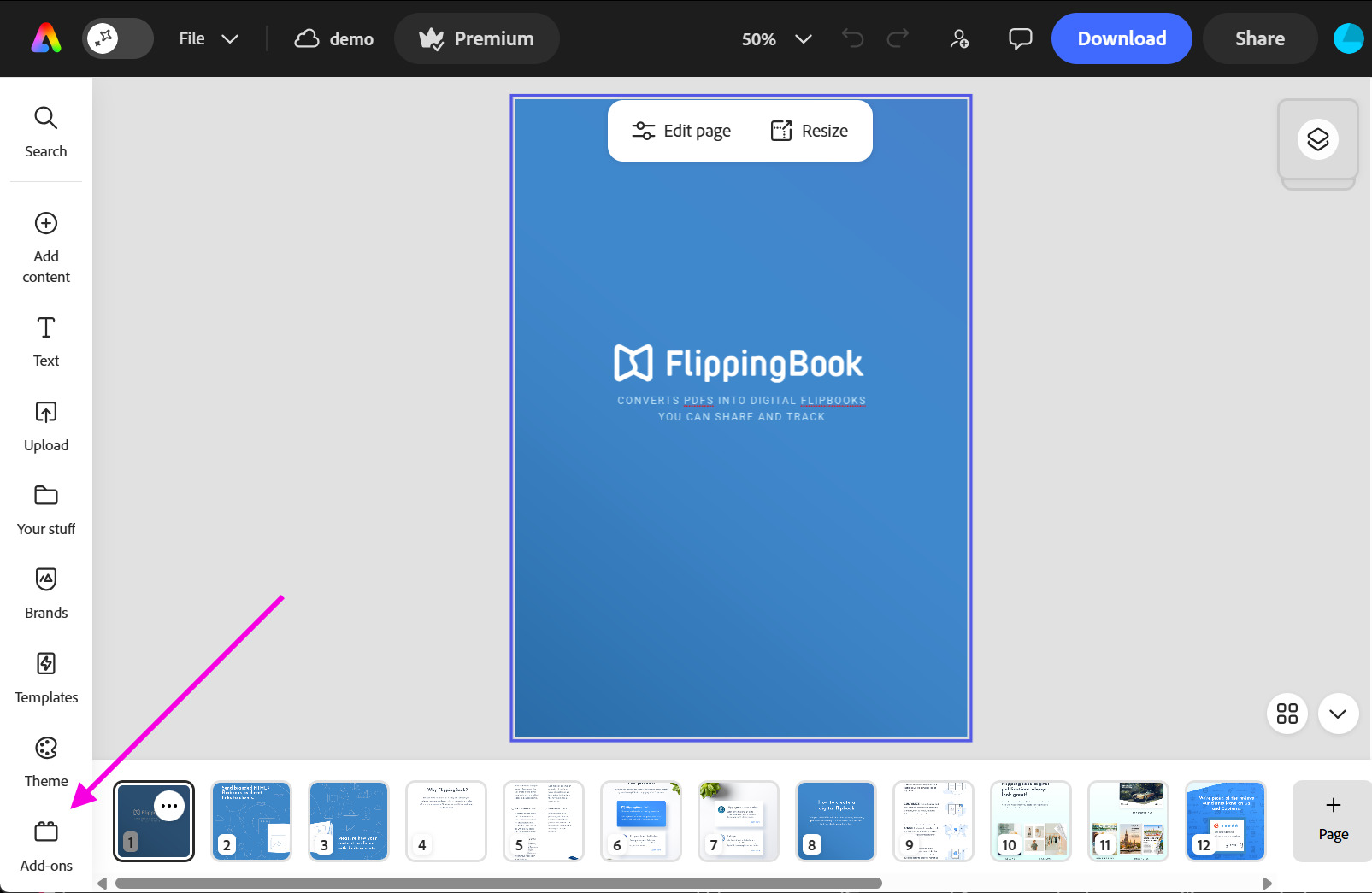
- Type “flippingbook” in the search box. When you find the FlippingBook application, click Add next to its name.
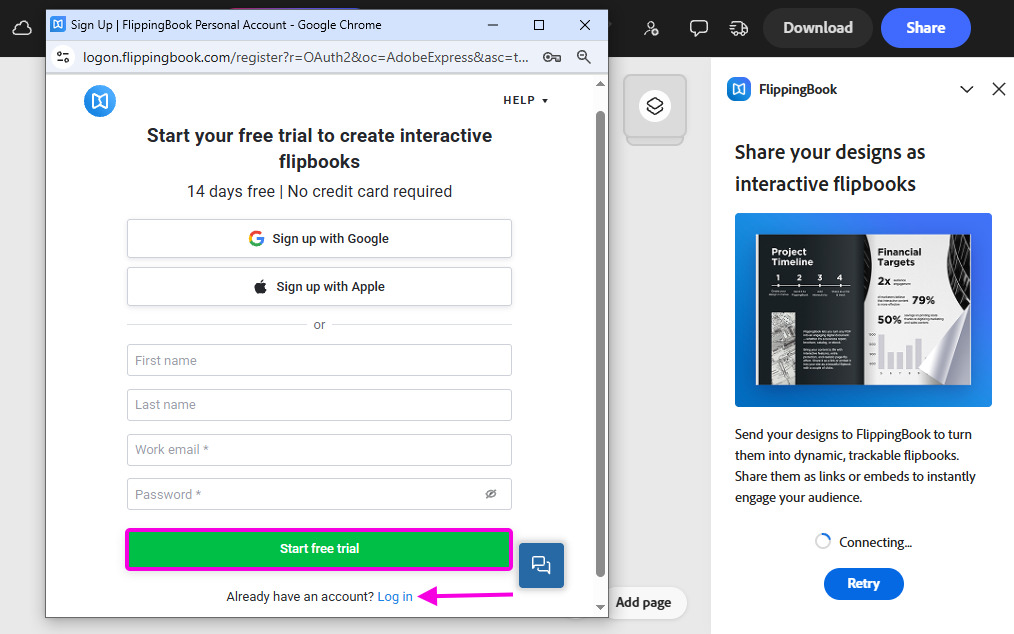
- In the pop-up window of the application, log in to your FlippingBook account using your credentials, or create a new account by clicking Start free trial:
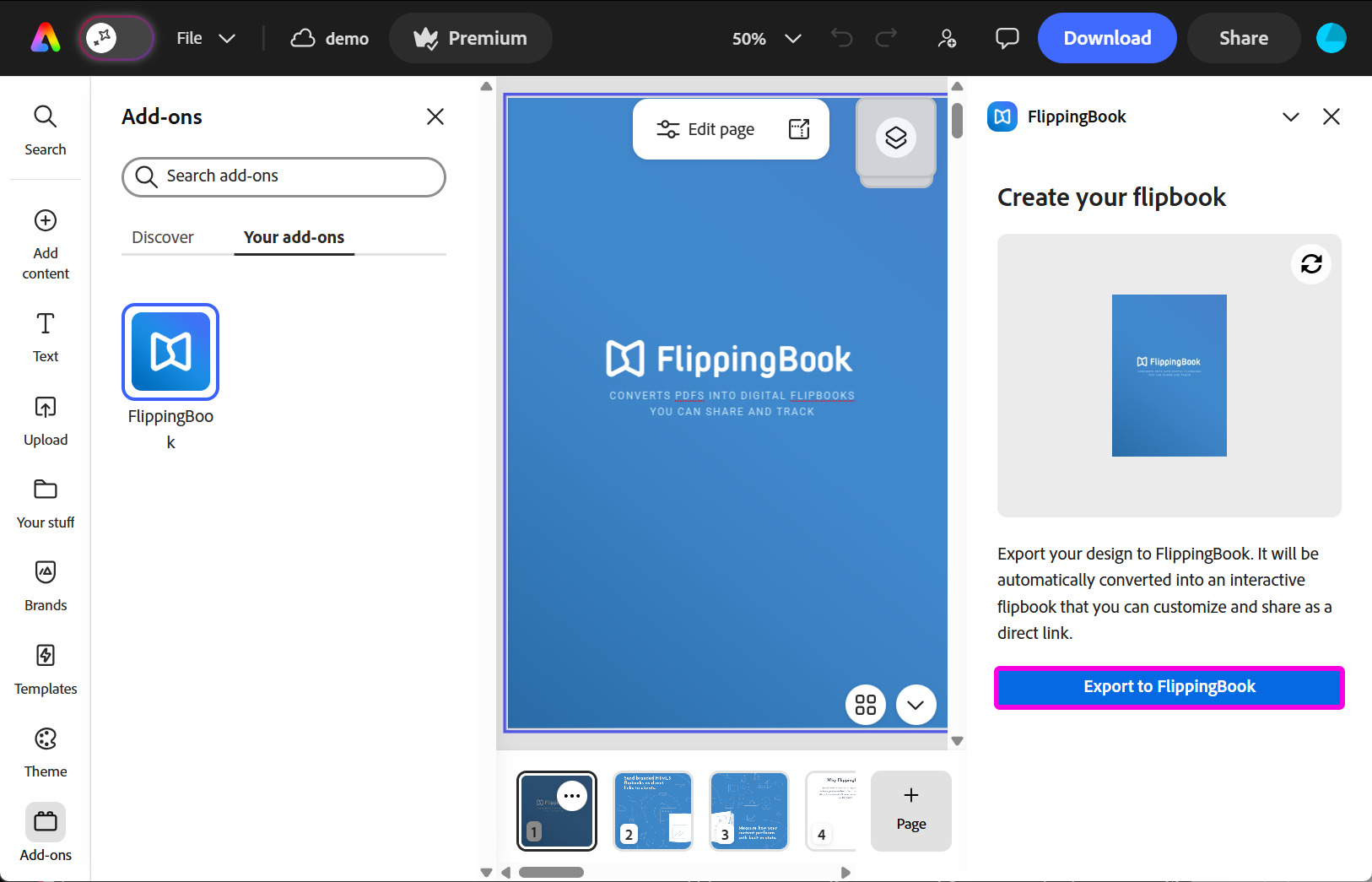
- After logging in, click Export to FlippingBook on the right side of the page to publish your flipbook:
- Wait till the uploading process is over. Note that you can always stop the publishing by using the Cancel button.
- Once the system completes the publication process, you’ll see “Flipbook ready to go!” on the right panel.
After creating your flipbook, the following options will become available:
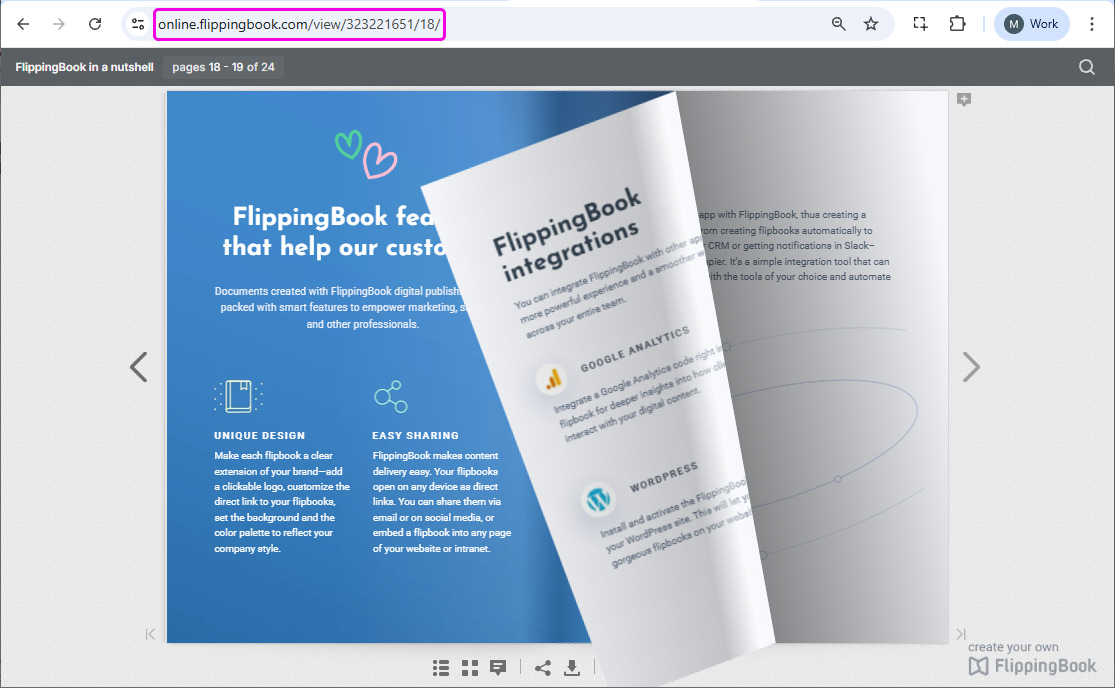
- View flipbook opens your flipbook in a new tab of your browser. You can copy the link there and share it with your customers.
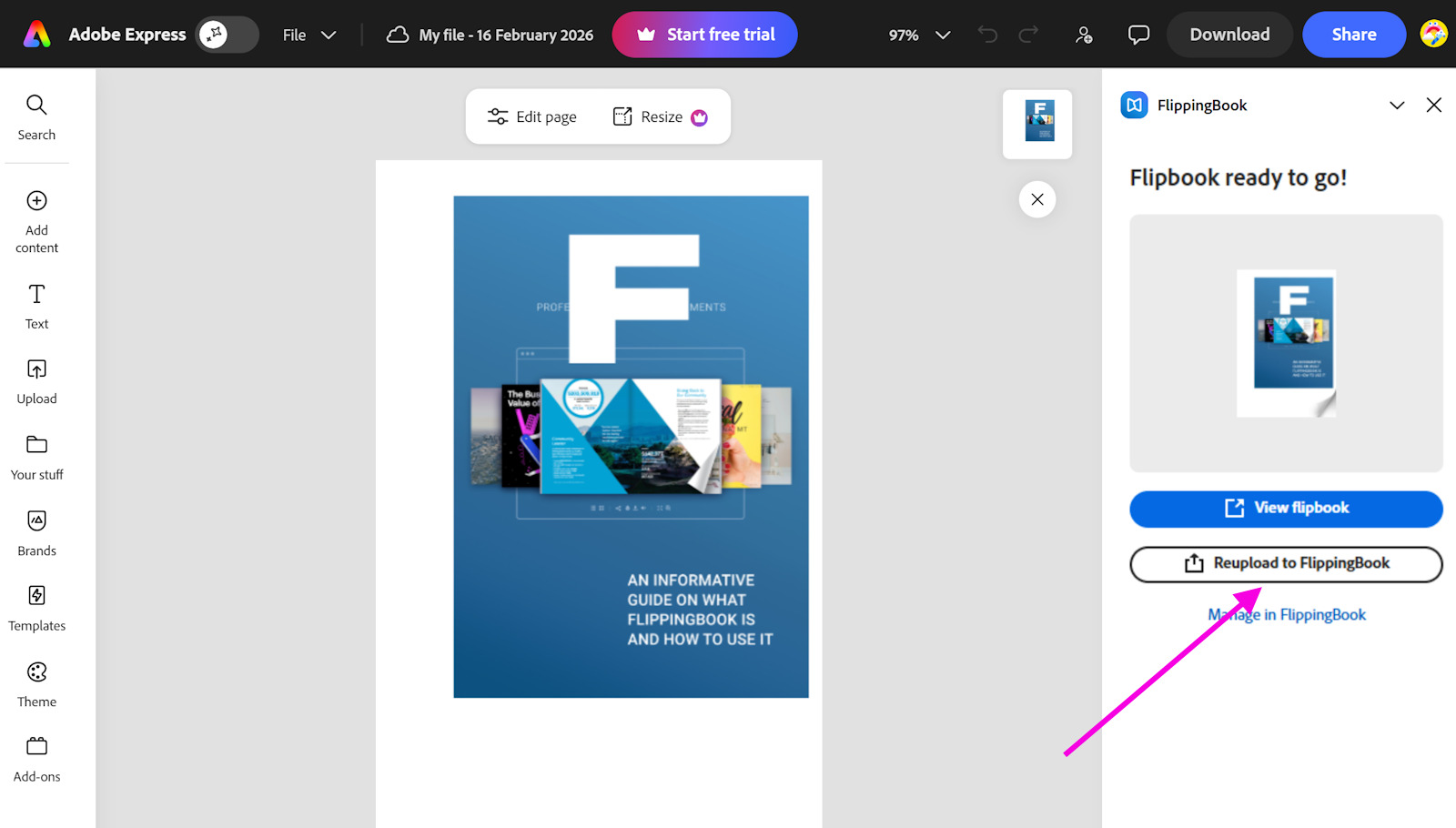
- Reupload to FlippingBook updates your flipbook once you make changes in your original Adobe Express file. The option is available from the Starter plan and higher.
- Manage in FlippingBook opens the flipbook page in the FlippingBook Online account. There, you can customize the publication, add images and videos, apply your branding, view stats, and more. Now that you know the available options, take a look at our article Next steps after creating your first flipbook to learn how they work.
How to update a flipbook created via Adobe Express
Once your Adobe Express file is published in FlippingBook Online, you may want to replace it without changing the link. It can be useful when you have a monthly newsletter or a brochure, or when you simply find a typo in your current flipbook.
Note! The Lite plan does not allow reuploads. To enable this, consider upgrading your plan.
Here is how you can update your flipbook via Adobe Express:
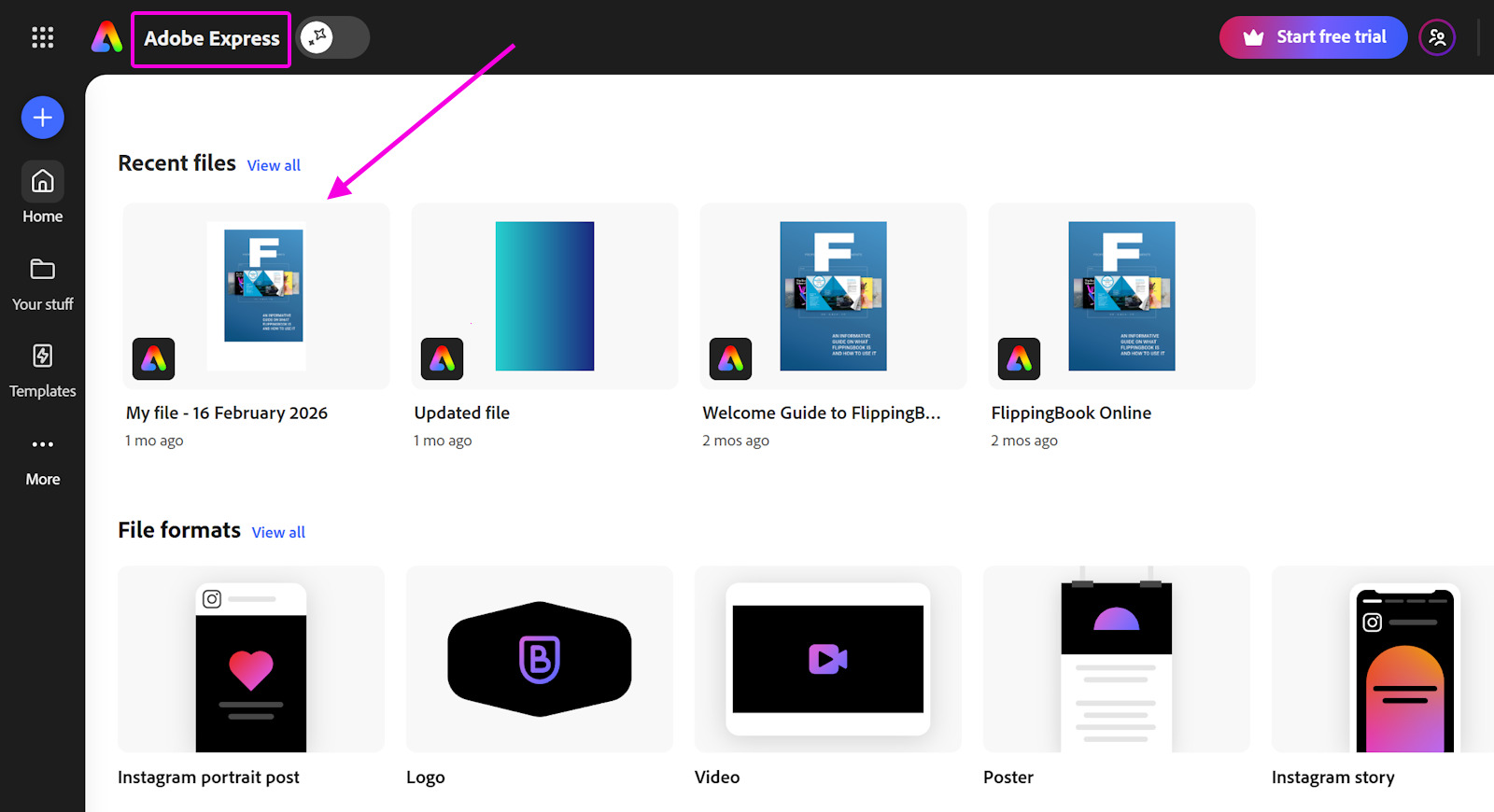
- Open your published file by clicking the Adobe Express link in the top-left corner of the page and selecting the file from Recent files:
- Make any changes you need. After that, click the Add-ons option in the left-hand menu:
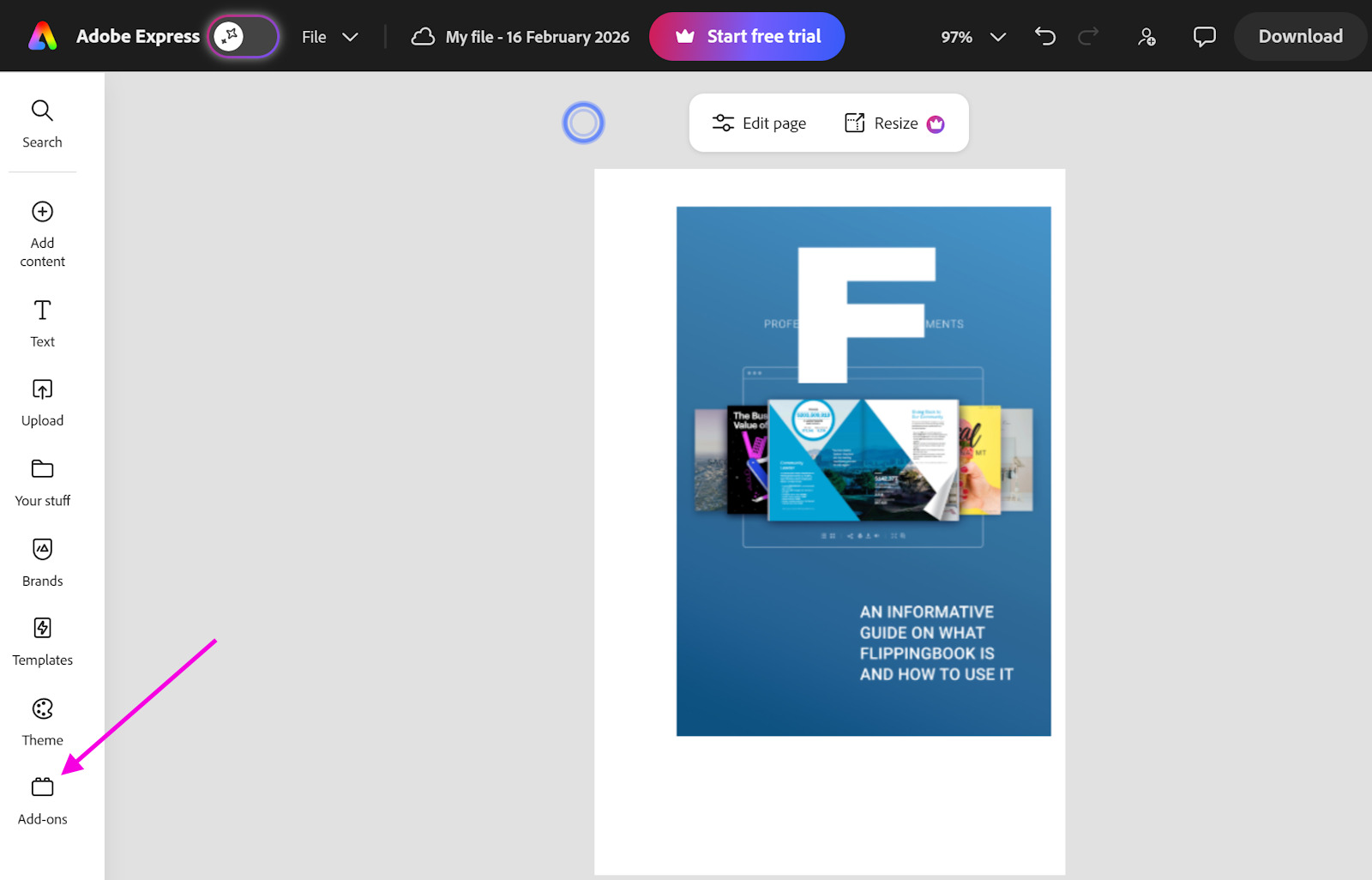
- Type “flippingbook” in the textbox, and once you find the FlippingBook application, press Open next to its name.
- Click Reupload to FlippingBook on the right side of the page. The system will automatically start the update process:
- Note that you can always stop the reuploading by using the Cancel button.
- After the update finishes, click View flipbook to review the updated version.
How to resolve common export issues
When you export your Adobe Express file, you may sometimes encounter an error that ends with a “Try again” message. This can happen for several reasons, such as:
- You have exceeded your flipbook limit
- You have exceeded the maximum number of pages or the file size allowed for your flipbook
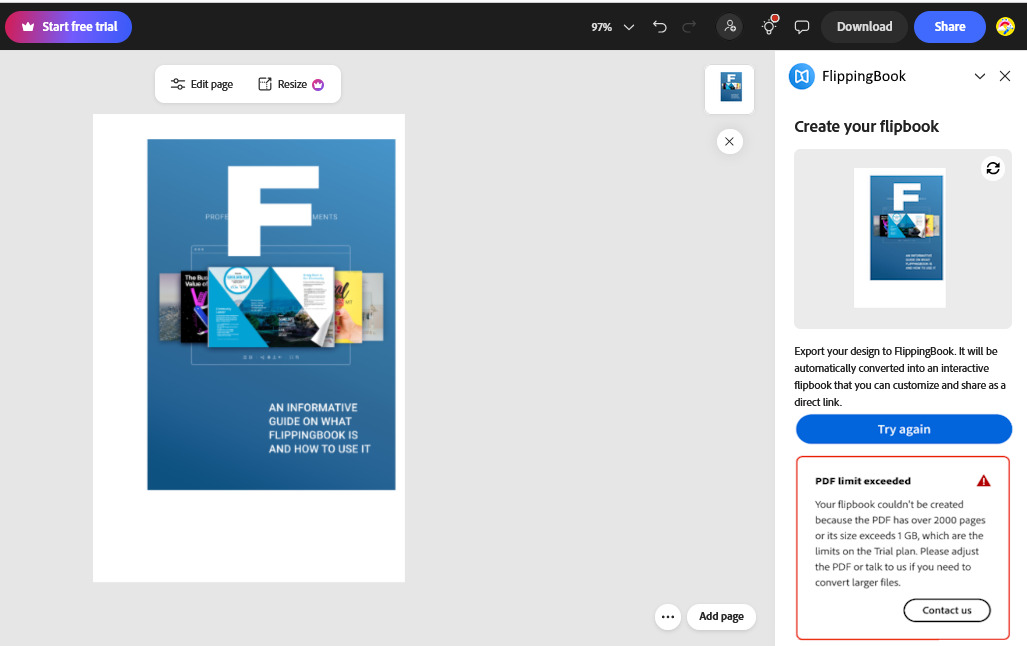
Here are the solutions to fix these issues:
- If you have exceeded the number of allowed flipbooks, you can either delete some of your existing flipbooks in your account or upgrade your plan.
- If you have exceeded the maximum number of pages allowed for your flipbook, you can fix the issue by upgrading your plan or by splitting your PDF. We explain how to do it in our Troubleshooting guide.
- If the flipbook couldn’t be created because the PDF file size exceeds the limit, try optimizing your PDF using an online service such as Smallpdf or Adobe Acrobat Pro. We explain this solution here.
Related articles
- If you’re also using Canva, check out our article, How to Create a PDF with Canva, to learn how to publish your Canva project to FlippingBook Online.
- If you’d like to connect FlippingBook Online with other apps, feel free to explore our article about available integrations.


