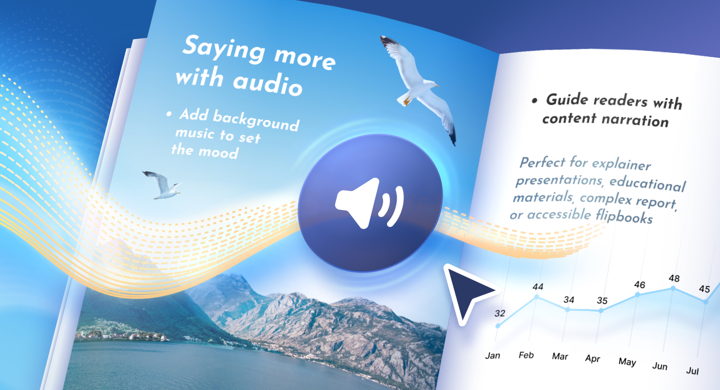
Flipbooks are great at combining the familiarity of PDFs with the interactivity of the web. But sometimes, your content has more to say. You may want to explain a complex topic, guide readers through a presentation, or make your flipbooks more accessible. Or maybe you just want to make your flipbook a little more memorable.
That’s why we’re excited to share our new feature with you—you can now add audio tracks that play right on the page of your flipbook.
⭐ Adding audio is available starting with the Optimal plan and higher.
Ways to Use Audio in Your Flipbooks
🎓Build richer learning experiences
Make your educational content more immersive by combining text, visuals, and audio.
- Help learners understand complex topics with explanations and narrated lessons.
- Create instructions for employee training documents.
- Include pronunciation guides in language-learning coursebooks.
🎤Create self-guided presentations
Walk readers through sales decks, presentations, or reports with recorded explanations—audio lets you deliver your message when you can’t be there in person. Even if a lead doesn’t agree to a call, you can still send a self-guided presentation that delivers your message at scale while creating a more personal, emotional connection.
🎵Set the mood with background music
Whether it's a travel brochure, digital magazine, portfolio, or event program, the soundtrack can help immerse readers in your content. Sometimes, a little background music is all it takes to set the right tone. 🌟
🗣️Make flipbooks more accessible with voice narration
Accompany written content with spoken narration to make your flipbooks easier to consume for people with visual impairments, reading difficulties, or anyone who prefers listening over reading.
Making your flipbooks more accessible helps a wider audience engage with your content. It also shows your readers that you're committed to creating an inclusive experience.
💡 Voice narration can also help readers stay engaged with longer documents.
🛍️Turn brochures and catalogs into interactive product demos
You can record a personal introduction to your products or walk customers through your catalog, helping them better understand what makes your offering unique. Highlight key features and answer common questions before customers reach out.
How to Add Audio to Your Flipbook
- Open the Editor and choose Audio in the left panel.
- Upload an MP3 file (up to 100 MB) or insert a link to an MP3 audio file (no file size limit).
- Choose audio settings, such as autoplay or loop.
- Then set the audio icon color, size, and position.
📍 Adding audio by link? Make sure that you use a direct link to a publicly accessible MP3 file. The link should take readers straight to the audio file, rather than to a webpage or cloud storage sharing page. Other audio formats, such as .wav or .m4a, aren’t supported. Just keep in mind that FlippingBook embeds the audio link rather than hosting the file, so the original file needs to stay available online.
That’s it! Read our Help Center article to learn all the details about audio in flipbooks.
Go ahead and try adding audio to your content right away!