

 FlippingBook Publisher
 FlippingBook Automation
 Salespal
How to use text conversion settings?
 Product: FlippingBook Online
In FlippingBook Online, your PDFs are converted to HTML. When your PDFs contain text (which almost every PDF does), we can convert this to HTML in two different ways:
- Vector text is based on mathematical formulas for how to draw each character;
- Raster text is based on images consisting of pixels.
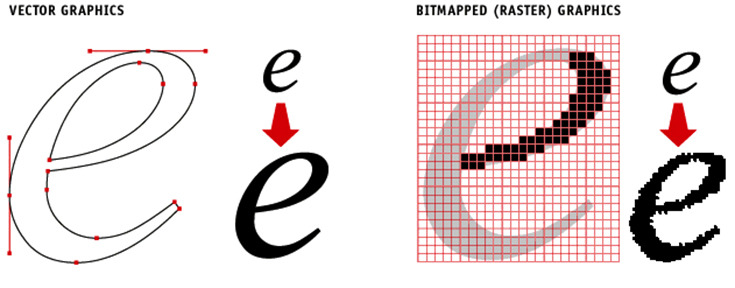
While both formats look very good, we try to convert your text to vector text by default. Vector text is sharper and has higher contrast than raster text, so most of our users prefer vector text. The files are smaller as well, resulting in faster loading speed.
However, creating vector text is (technically) considerably more difficult. In rare cases, this can result in worse results than when using Raster text. This can happen with very complex fonts, or if the PDF contains incorrect information as to how to create the mathematical formulas for the fonts. As a result, the text may use incorrect fonts or be out of position. If that happens to your PDF, we advise you to change the conversion format to Raster and reupload your PDF.
How to convert a PDF with raster text?
- Open the PDF conversion page of your account settings.
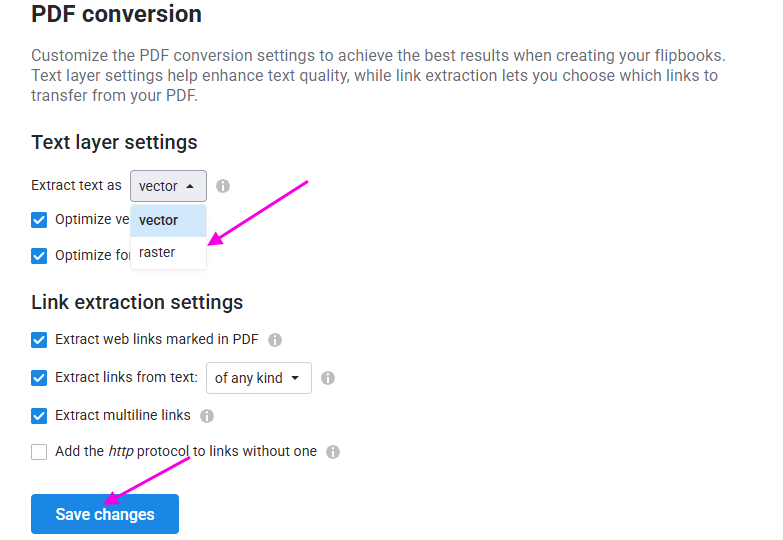
- Under Text Layer Settings, find Extract text as and select Raster.
- Press Save changes.
- Reupload your PDF (Select More ... and Replace PDF and use the same PDF again).
- Check the result. In most cases, the problems with the text should be resolved.
You can now change the Extract Text As setting back to Vector for your next PDF. Of course, if you actually prefer the slightly softer look of the text, then you can keep this setting for all your flipbooks. While most users will be hard-pressed to notice a difference between Vector and Raster text, some do.
What about the Optimize Vector Text and Optimize Fonts options?
In the Text layer settings you can also find two options called Optimize Vector Text and Optimize Fonts as well. These options are for advanced troubleshooting and only apply when the Extract Text As setting is set to Vector. If you have a problem with a specific font not being rendered correctly, you can try to disable either or both of these optimizations and re-upload the PDF. This can solve the problem, but it can potentially create problems with other fonts. Therefore, we advise you to try the Raster text variant described above first, and only if you are unhappy with the quality of the result, try the following:
- Disable Optimize Vector Text and reupload the PDF. Then check whether this solves the problem and doesn't introduce problems on other pages.
- If the problem still persists, enable Optimize Vector Text again, disable Optimize fonts, reupload the PDF, and check whether this solves the problem and doesn't introduce problems on other pages.
- If it still doesn't solve the problem, you can distill the PDF and reupload it.
Of course, you can always contact our support team at support@flippingbook.com. We will be happy to look at the PDF and see if we can do anything about it.


