

 FlippingBook Publisher
 FlippingBook Automation
 Salespal
Embed flipbooks transparently
 Product: FlippingBook Online
Alert!⚠️The settings discussed in this article only concern publications viewed on desktops, not on mobile devices. We advise you to read the article on a desktop too! On mobile, all the examples will look the same.
It is possible to embed flipbooks without the background and without the interface. This creates a completely seamless experience. It is especially useful for publications where your viewers only browse the pages and don't need any of the added functionality like the Table of Contents, Notes, Print, or Download. Typically, these are short and graphical.
Your flipbook may look something like this on Desktops with standard embed code:
Short Guide - Transparent embed
A transparent embed of exactly the same flipbook looks like this
Short Guide - Transparent embed
Right-click on the book to see it full-screen!
As you can see, the following elements/features will be hidden or disabled:
- Background color or image/skin of the publication;
- Sidebars;
- Top and bottom panels;
- Notes;
- Page-turning sound;
- Preloader during publication loading.
Your readers can still double-click to zoom and right-click on the embedded flipbook to open a context menu with the full-screen option. If they do so, the flipbook will be opened full-screen with all the normal options and settings. However, if the standard functionality is crucial, then consider whether this mode suits you. Most likely, many of your readers will not discover this by themselves, even if you add a small note.
How to activate transparent embed?
To activate the transparent embed with a simplified publication interface,
- Go to the Flipbooks section in your FlippingBook Online account.
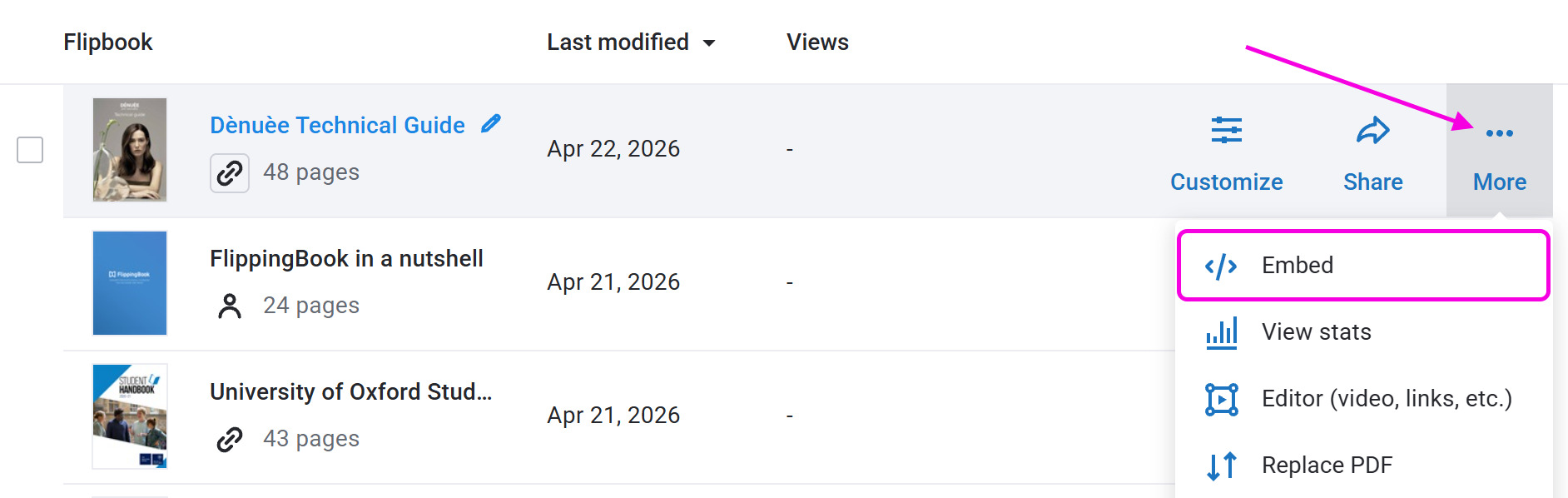
- Hover over your flipbook and select Embed or find the option in the More menu.
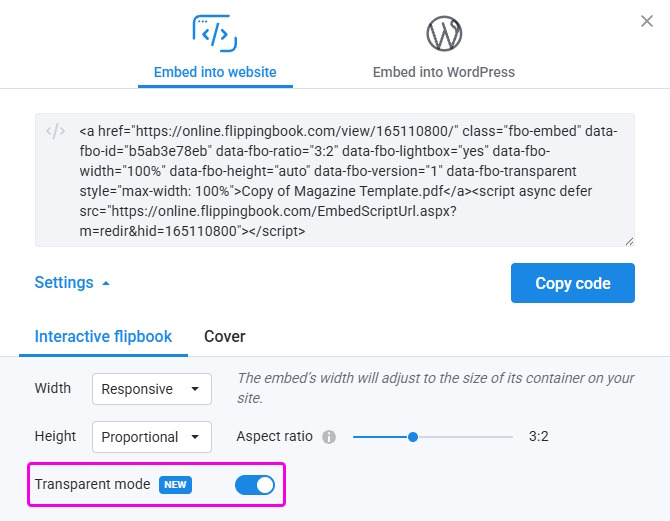
- Click Settings and enable the Transparent mode switcher.
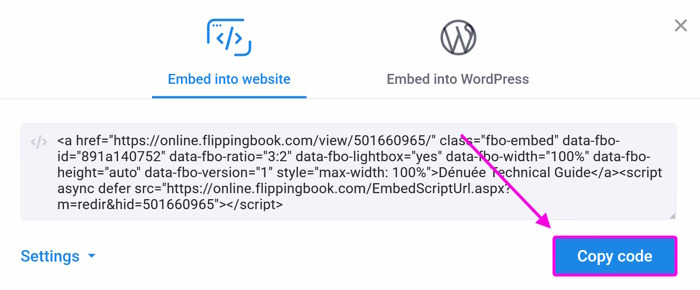
- Click on Copy code to copy the embed code to the clipboard.
- Go to your Content Management System (CMS) and add this code to your web page. The exact way to do it depends on your CMS. For most CMSs, it roughly works like this:
- Open the page into which you want to embed your flipbook.
- Move to the place on your page where the flipbook should be.
- Add an element which is typically called something like Embed (or Insert) HTML/code/markdown/code snippet.
- Paste our embed code in the text box.
- Save or publish your page.
Your flipbook with transparent embed should now be embedded into your page.
Additional settings for a transparent embedded flipbook
Slightly tech-savvy users can customize the color of the navigation arrows to make them more noticeable. You can also set the publication size by percentage. You can do this by adding extra parameters to the embed code after you paste it in your CMS.
- data-fbo-navigation-color="#ffffff" — sets navigation button colors on desktop (in HEX format);
- data-fbo-book-size="80" — defines the size of the publication in percentage, in this example 80%
These parameters are not available in the standard embed dialog. You need to add them manually to <a ...> part of the standard embed code. (The exact position is not crucial, but we advise putting it right behind the parameter data-fbo-transparent for clarity.)
Modified code for transparent embed (example)
<a class="fbo-embed" style="max-width: 100%;" href="https://online.flippingbook.com/view/403559353/" data-fbo-id="8a4dee1540" data-fbo-ratio="3:2" data-fbo-lightbox="yes" data-fbo-width="100%" data-fbo-transparent data-fbo-navigation-color="#ff0000" data-fbo-height="auto" data-fbo-version="1">Short Guide - Transparent embed</a></p><script src="https://online.flippingbook.com/EmbedScriptUrl.aspx?m=redir&hid=403559353" async="" defer="defer"></script>
Some examples
The screenshots below illustrate how the publication appears with this parameter enabled.
Using data-fbo-navigation-color="#ff0000" (red) makes the arrows for turning the pages more noticeable.
Short Guide - Transparent embed
If you want to adjust the margins around the flipbook, you can decrease the book size by setting data-fbo-book-size="80"
Short Guide - Transparent embed
If you, on the contrary, want to minimize the borders around the flipbook, set the book size to 100 (the default value is 95): data-fbo-book-size="100"
Short Guide - Transparent embed
We hope these examples gave you some ideas!
Removing the logo
Clients who are on the Optimal plan or higher can remove the logo from the flipbook. You can do this by going to Customize and in the Branding & Style section, clicking on the button next to Logo. Press on the tuning icon  and click Remove.


