

 FlippingBook Publisher
 FlippingBook Automation
 Salespal
Privacy settings: Passwords
 Product: FlippingBook Online
Users of FlippingBook Online Advanced, Team, and Enterprise plans can password-protect their flipbooks. Password protection is a simple and effective way to secure your content.
When readers open a link to a password-protected flipbook, they are prompted to enter the password before it opens. Once the correct password is entered, the flipbook opens normally. Without it, they won’t be able to view the publication at all.
To set up a password:
- Click on the privacy settings icon below the publication name.
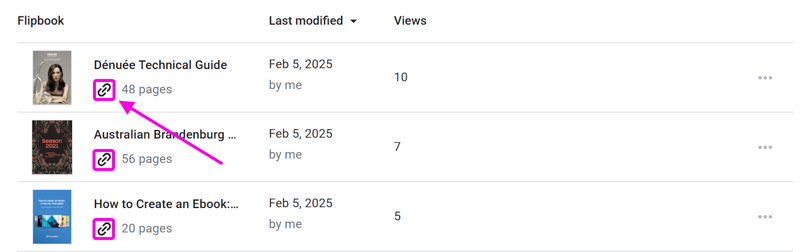
- Click on Privacy Settings in the small pop-up. This will bring up another pop-up with all the privacy options.
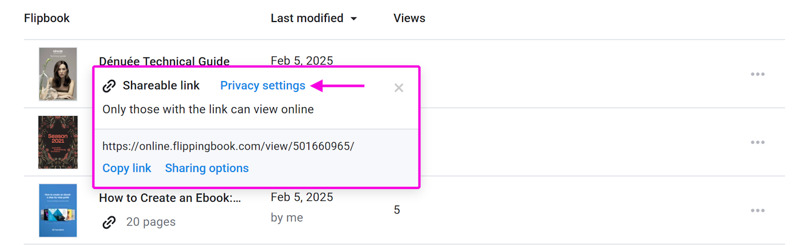
- In the privacy settings pop-up, select Password and type a suitable password.
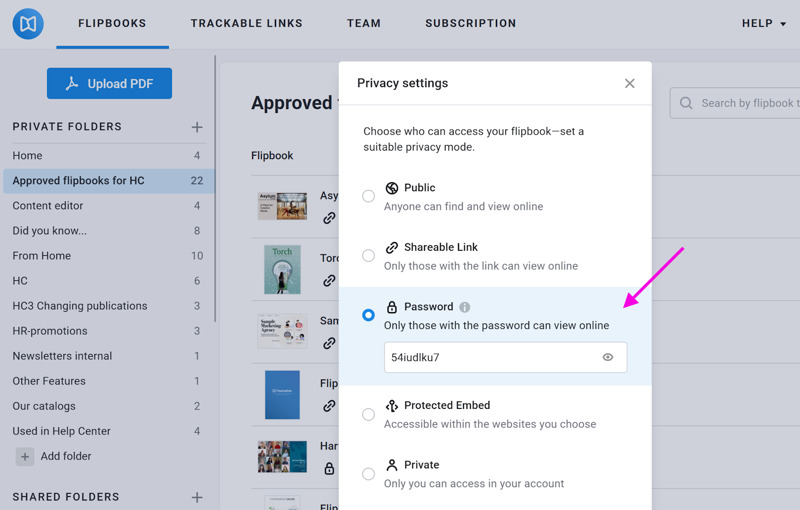
- Click Apply.
Your flipbook is now password-protected. When your readers open it, they will be asked to enter the password. They need to do this just once. The web browser will remember the password. The next time they open this flipbook, it will open without asking for a password until you change the password. By the way, you can also protect several flipbooks at once with a password, or update the existing password to a new one.
Tip💡If you make a flipbook password-protected, then also consider disabling the Print and Download options, and possibly even the option to select text!
Related articles
Do you want to add additional protection settings? Besides setting up a password, you can use a protected embed or restrict access via authorized email addresses!


