


Transparent Flipbook Embedding 🆕
 Product: FlippingBook Publisher
Note!⚠️The settings covered in this article apply only to publications viewed on desktop devices, not mobile. For the best experience, we recommend reading the article on a desktop as well. On mobile devices, all examples will appear the same.
You can embed flipbooks without a background or interface, creating a seamless viewing experience. This option works very well for publications where readers need to browse through the pages and don’t require additional features such as the Table of Contents, Notes, Print, or Download.
It’s especially suited to short, highly visual publications where the content itself is the main focus.
Note!This feature requires publications uploaded with Flippingbook Publisher 2026.3. Older publications must be reuploaded first.
Your flipbook may look something like this on Desktops with standard embed code:
Short Guide - Transparent embed
A transparent embed of exactly the same flipbook looks like this:
Short Guide - Transparent embed
Right-click on the book to see it full-screen!
As you can see, the following elements/features will be hidden or disabled:
- Background color or image/skin of the publication;
- Sidebars;
- Top and bottom panels;
- Notes;
- Page-turning sound;
- Preloader during publication loading.
Readers can still double-click to zoom in or right-click the flipbook to open the context menu, which includes the full-screen option. When opened in full-screen mode, the flipbook displays all the usual features and settings.
However, if access to the standard functionality is important to your readers, consider whether a transparent embed is the right choice. Many readers may not realize that additional features are available through the right-click menu or full-screen mode, even if you provide a short explanation.
How to activate transparent embed?
To activate the transparent embed with a simplified publication interface,
- Start FlippingBook Publisher and, on the main screen, click on Publication and then Get Embed Code.
- Paste the link to your online flipbook in the Publication URL field.
- Enable the Transparent mode switcher. Note that this feature is available to users of FlippingBook Publisher 2026.3 and later.
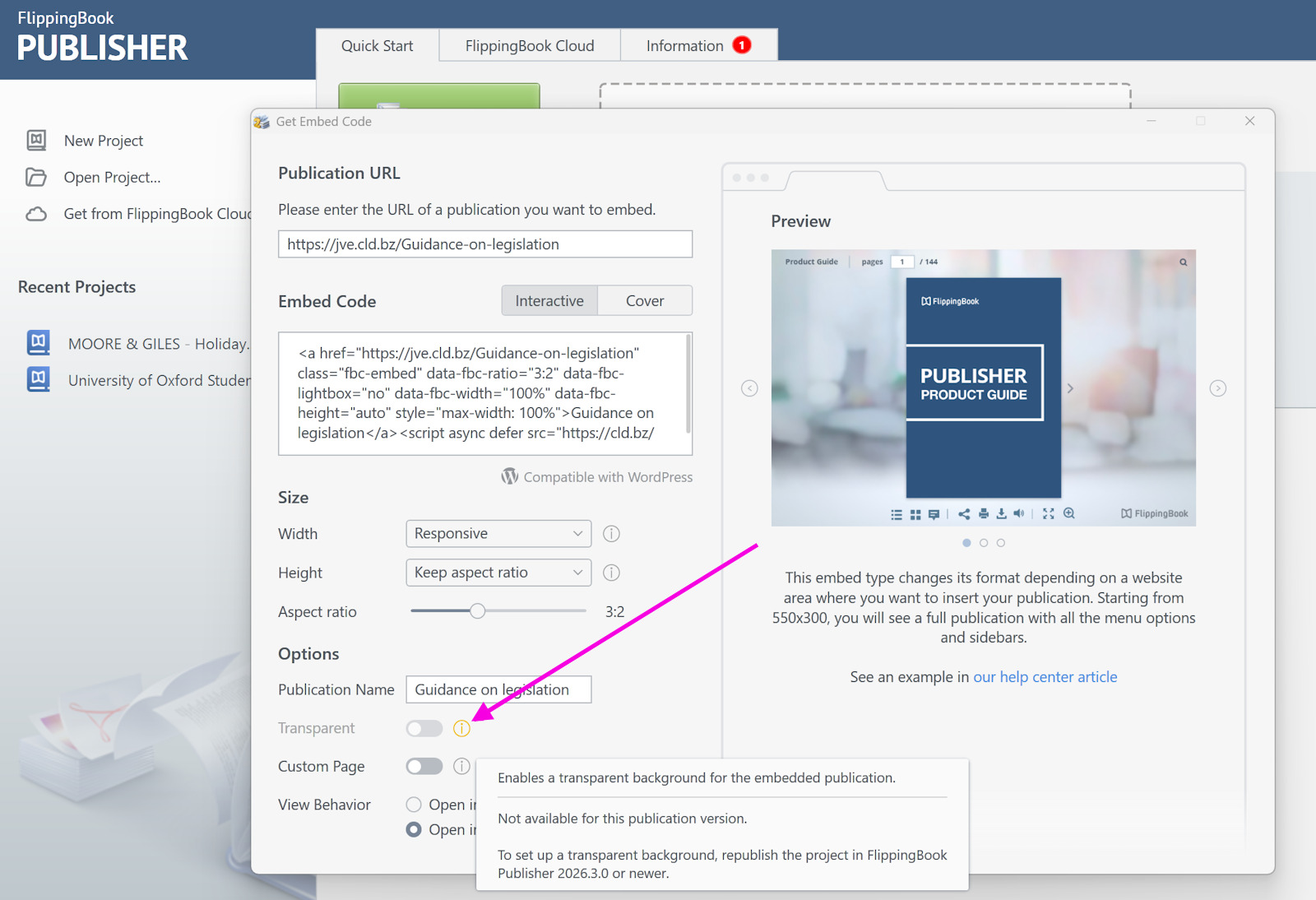
- Hover over the embed code and click to copy it to the clipboard.
- Go to your Content Management System (CMS) and add this code to your web page. The exact way to do it depends on your CMS. For most CMSs, it roughly works like this:
- Open the page into which you want to embed your flipbook.
- Move to the place on your page where the flipbook should be.
- Add an element which is typically called something like Embed (or Insert) HTML/code/markdown/code snippet.
- Paste our embed code in the text box.
- Save or publish your page.
Your flipbook with transparent embed should now be embedded into your page.
Additional settings for a transparent embedded flipbook
If you’re comfortable with a bit of code, you can customize the navigation arrow color to make the arrows more visible. You can also adjust the publication size using a percentage value. Both options can be configured by adding extra parameters to the embed code after inserting it into your CMS.
- data-fbc-navigation-color="#ffffff" — sets navigation button colors on desktop (in HEX format);
- data-fbc-book-size="80" — defines the size of the publication in percentage, in this example 80%
Note!These additional parameters work when you publish your flipbook to FlippingBook Cloud. If you’re self-hosting your publication, replace fbp instead of the fbc. For example, data-fbp-book-size="80"
These parameters are not available in the standard embed dialog. You need to add them manually to <a ...> part of the standard embed code. (The exact position is not crucial, but we advise putting it right behind the parameter data-fbc-transparent for clarity.)
Modified code for transparent embed (example)
<a href="https://cld.bz/users/trial-ykYBNqu/Quick-Start-Guide" class="fbc-embed" data-fbc-ratio="3:2" data-fbc-lightbox="no" data-fbc-width="100%" data-fbc-height="auto" data-fbc-transparent data-fbc-navigation-color="#ff0000" style="max-width: 100%">Quick Start Guide</a><script async defer src="https://cld.bz/e/09IIJ5r/embed.js"></script>
Some examples
The screenshots below illustrate how the publication appears with this parameter enabled.
Using data-fbc-navigation-color="#ff0000" (red) makes the arrows for turning the pages more noticeable.
Short Guide - Transparent embed
If you want to adjust the margins around the flipbook, you can decrease the book size by setting data-fbc-book-size="80"
Short Guide - Transparent embed
If you, on the contrary, want to minimize the borders around the flipbook, set the book size to 100 (the default value is 95): data-fbc-book-size="100"
Short Guide - Transparent embed
We hope these examples gave you some ideas!
Removing the logo
Clients using FlippingBook Publisher Business can remove the FlippingBook logo from their flipbooks. To do this, open the General pane on the right side of the page, click the square next to Background logo, and select Remove logo.


